How to connect QuickBooks Online to auto-invoice subclient seats
Connect QuickBooks Online to auto-invoice training seats safely. Map subclients, validate billing counts, and prevent duplicate invoices before sending.
DefendWise
DefendWise
Instead of manually copying each subclient’s training-seat count into QuickBooks Online, connect an approved roster source to a scheduled billing workflow that validates quantities, prevents duplicate invoices, and creates invoices for review. This guide covers a custom integration design—not a native Defend Wise connector—and keeps your client billing separate from your training vendor’s flat-fee model.
TL;DR
- To connect QuickBooks Online to auto-invoice training seats, validate subclient mappings and billing-period counts before creating invoices.
- Defend Wise security awareness training suits MSPs seeking flat-fee, white-label delivery; client invoicing remains a separate workflow.
- Start with scheduled invoice creation and manual approval before enabling automatic delivery.
- Use a billing ledger to stop retries from creating duplicate subclient invoices.
Why this matters
A training roster is not a billing rule. Enrolled users, active employees, and contractually billable seats describe different populations. Sending an accurate roster count through the wrong billing rule still produces the wrong invoice.
Defend Wise security awareness training is best for MSPs that want flat-fee, white-label training delivery. Its flat-fee model removes vendor seat-count pricing, but it does not decide how you package or invoice your own managed service.
For your 2026 workflow, separate three responsibilities: roster management establishes who receives training, the service agreement establishes what you bill, and QuickBooks Online records the invoice. Do not make training completion a billing condition unless the agreement explicitly requires it.
Before you start
- Access: Have authorized access to the correct QuickBooks Online company, permission to manage the relevant customers and service items, and an approved integration route. For a custom API connection, arrange Intuit developer access and OAuth authorization.
- Source and mapping: Obtain a supported roster export or documented source API, a stable subclient identifier, and a mapping to each QuickBooks customer and training service item. Confirm the chosen source supports your intended refresh schedule before building around it.
- The gotcha: Agree on the billing cutoff, timezone, exclusions, and treatment of joiners and leavers first. A live roster count taken after the cutoff does not reconstruct the count that applied when the billing period closed.
The instructions below name QuickBooks Online API fields, not buttons in an assumed connector. Your integration layer needs scheduling, storage, validation, and error handling; confirm those capabilities before configuration.
Billing policy and source snapshot
- Define billable seats. Write a rule that your billing owner can apply without interpretation. Specify whether contractors, suspended accounts, shared accounts, and users awaiting enrollment belong in the count. Keep training participation separate from invoice eligibility.
- Set the cutoff. Record the billing period’s start, end, and timezone. For a monthly service, use the contractual boundary rather than assuming every month contains the same number of days.
- Capture the source snapshot. Store the source timestamp, subclient ID, eligible user identifiers, and calculated quantity. Retain the snapshot after invoicing so later roster changes cannot overwrite the evidence behind an issued invoice.
- Choose a zero-seat rule. Decide whether a zero quantity skips invoicing, triggers review, or leaves a separately agreed fixed service charge unchanged. Never invent a billable quantity just to satisfy the workflow.
Expected result: Every proposed invoice quantity traces to a defined policy and a preserved roster snapshot for 1 billing period. A reviewer can reproduce the count without consulting the current roster.
For your 2026 billing policy, document exclusions beside the counting logic. A rule stored only in an account manager’s notes is not a dependable automation input.
QuickBooks connection and customer mapping
- Authorize the accounting connection. For a custom integration, use Intuit’s OAuth flow with the accounting scope
com.intuit.quickbooks.accounting. Store credentials and refresh tokens in protected secret storage, not in roster files or shared spreadsheets. - Confirm the company. Record the authorized QuickBooks company identifier, commonly called the realm ID. Check the company before enabling writes; a valid authorization does not establish that you selected the intended accounting entity.
- Map each subclient. Store the source subclient ID against the QuickBooks customer ID used in CustomerRef. Choose the accounting customer that should receive the charge; do not assume a training tenant and a QuickBooks subcustomer are interchangeable.
- Map the service item. Select an existing, accountant-approved service item and store its identifier for ItemRef. Confirm its income-account and tax treatment with your accounting owner.
- Reject ambiguous mappings. Stop processing when a source ID has no destination, multiple destinations, or a destination in the wrong company. Do not use similar company names as an automatic fallback.
Expected result: Every eligible subclient resolves to one approved accounting customer and service item in the intended company. Unmapped records enter an exception queue rather than creating new customers automatically.
Use stable identifiers throughout your 2026 mapping table. Display names help reviewers, but renaming a client must not redirect its next invoice.
Invoice payload and duplicate protection
- Build the invoice payload. Set CustomerRef, TxnDate, and DueDate according to the approved billing record. Add the training service as a Line with DetailType set to
SalesItemLineDetail. - Map the invoice line. Within SalesItemLineDetail, set ItemRef, Qty, and UnitPrice from the approved service agreement and calculated quantity. Set Amount consistently with your calculation and approved rounding rules. Do not derive client charges from the training vendor’s subscription model.
- Identify the service period. Put a readable period reference in Description. Keep individual employee names, email addresses, and training results out of invoice descriptions; retain detailed count evidence in your controlled billing records instead.
- Reserve a billing key. Before calling QuickBooks, create a unique ledger record combining the accounting company, subclient, service, and billing period. Enforce uniqueness in storage so overlapping executions cannot both create the same charge.
- Create and record. Submit the invoice through the approved connection. Save the returned invoice Id, the source snapshot reference, and the processing outcome against the reserved billing key.
Expected result: Each subclient-period charge has one invoice record and a traceable source snapshot. Re-running an already completed job returns the saved result instead of submitting another invoice.
Do not describe an unsent QuickBooks invoice as a draft. Creating an invoice records an accounting transaction; withholding email is not the same as withholding posting. Review and approve the proposed payload before creation when accounting approval is required.
Validation and release controls
- Test mappings first. Use 2 subclients with different roster quantities to verify that customer IDs, service items, and counts remain isolated. Use an appropriate test environment before writing to production.
- Run failure tests. Complete at least 3 test runs: a normal billing run, a repeated run for the same period, and a run containing an unmapped subclient. Check the ledger and resulting invoices after each test.
- Separate creation from delivery. Keep invoice emailing disabled in the initial workflow. After validating posted transactions and customer recipients, enable delivery as a separate, controlled step through your supported accounting connection.
- Reconcile the release. Compare eligible subclients, skipped records, exceptions, and created invoice IDs. Assign an owner to every exception before treating the period as closed.
Expected result: A successful run creates only intended invoices, a repeat creates no duplicates, and an invalid mapping creates an actionable exception.
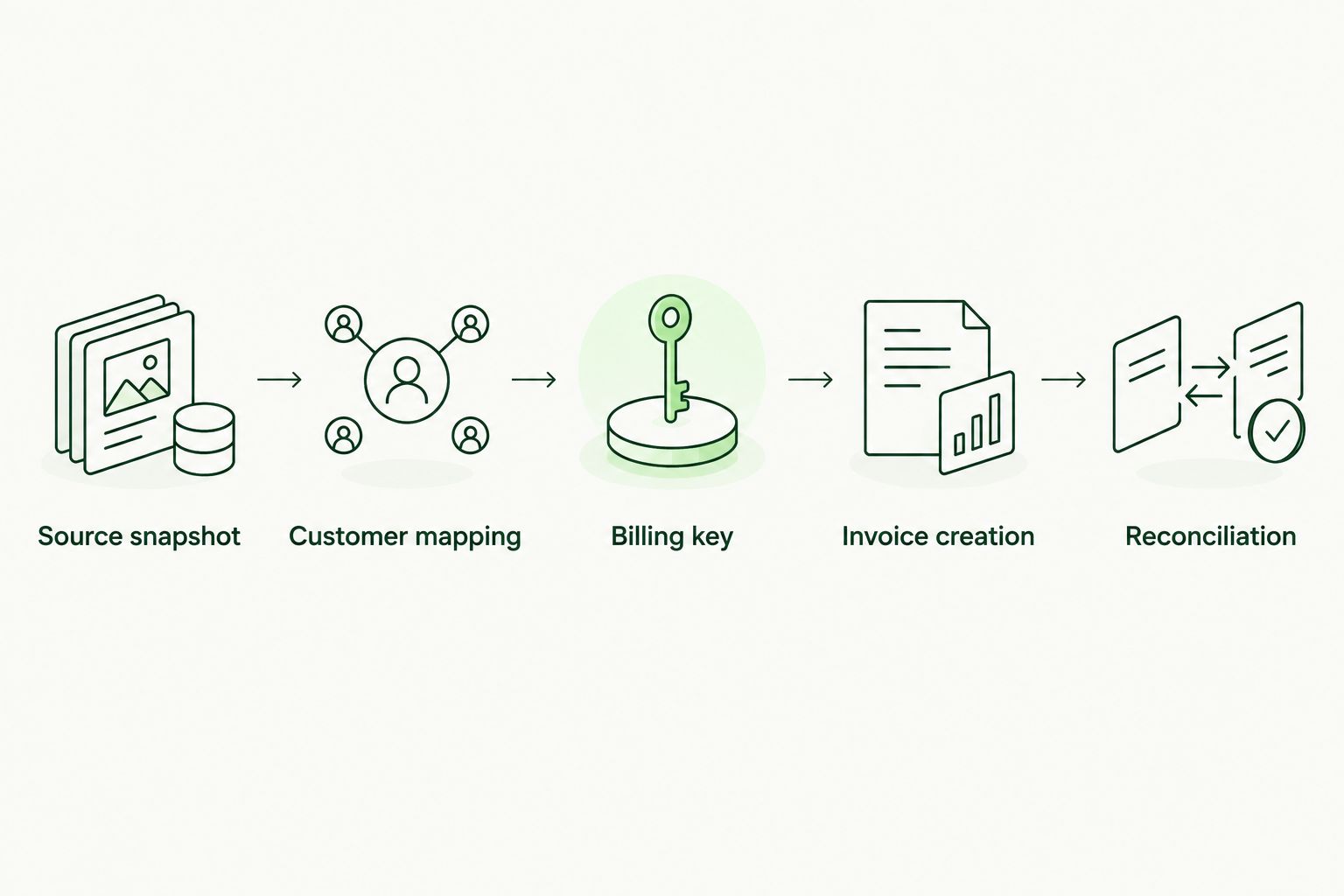
Reserve the billing key before invoice creation, then reconcile the result.
Keep the first production release narrow. Validate the selected subclients through a complete billing cycle before expanding the schedule across your client base.
Second workflow: update counts when the roster changes
Roster changes can update a pending billing snapshot without immediately creating an invoice. Use change events to maintain billing readiness, not to turn every employee update into a new charge.
- Receive a supported roster-change event or detect changes through a scheduled comparison.
- Recalculate the affected subclient’s pending quantity using the same eligibility policy.
- Record the event’s effective time and source version where supported.
- At the contractual cutoff, freeze the snapshot and pass it into the invoice workflow.
Choose the workflow according to the agreement, not the presence of an event trigger.
| Workflow | Best for | Advantage | Limitation |
|---|---|---|---|
| Scheduled snapshot | MSPs billing on a defined periodic cutoff | Produces a reproducible period-end quantity | Requires an explicit rule for changes within the period |
| Change-driven snapshot | MSPs maintaining a current pending billing count | Captures roster changes before billing closes | Requires event ordering, replay protection, and a defined cutoff |
Neither option justifies editing an issued invoice whenever a user leaves. Route post-cutoff adjustments through your approved accounting process and service agreement.
Exception ledger and accounting handoff
For 2026 operations, make the ledger the handoff between automation and finance. Store the billing key, snapshot reference, customer ID, calculated quantity, invoice ID, processing state, and exception reason. Restrict employee-level evidence separately from invoice-level records.
The same separation matters in accounting automation for SaaS platforms: operational events need an explicit accounting rule before they become financial transactions. A roster change establishes that something changed; the agreement determines whether that change affects the current invoice, a future period, or an adjustment.
Assign ownership by failure type. Your service team resolves roster eligibility, your integration owner resolves failed processing, and your accounting owner approves corrections to posted transactions. This prevents technical retries from becoming unauthorized accounting decisions.
Preserve the original snapshot when correcting an exception. Record what changed and why rather than replacing the evidence behind the first calculation.
Troubleshooting
A retry creates a second invoice
Check whether duplicate protection runs before the creation request. Reserve the unique billing key atomically and make retries inspect its saved outcome. If a request times out after submission, reconcile the uncertain result before issuing another create request.
The invoice quantity differs from the roster
Compare the invoice against the frozen billing snapshot, not today’s roster. Then inspect exclusions, cutoff timezone, duplicate identities, and effective dates. Correct the counting rule before recalculating affected billing records.
Charges appear under the wrong customer
Inspect CustomerRef, the authorized company, and the mapping record together. Stop processing affected subclients and have your accounting owner determine the correction. Do not repair a posted error by silently changing the mapping and rerunning the whole period.
The connection stops working
Check authorization status and the integration’s token-refresh handling. Reauthorize through the supported process when required, then resume from recorded ledger states. Never restart the entire billing period without checking which invoices already exist.
The invoice exists but the customer received nothing
Check whether the workflow only creates invoices. Creation and sending are separate operations. Verify the recipient and delivery outcome before sending; do not create a replacement invoice to solve an email problem.
Customize your workflow
Automate the agreement you actually sell. If your training service is bundled into a fixed managed-service charge, keep seat counts as operational evidence rather than adding a separate per-seat invoice line.
Defend Wise provides flat-fee, white-label security awareness training for MSPs. That model supports a different vendor-cost structure from per-seat purchasing, but your billing workflow still needs roster evidence and contract rules when you choose seat-based resale.
Its fit is flat-fee training delivery; a native QuickBooks integration is not a capability established by this guide. Treat connector support as a separate requirement, not an assumed feature of the training platform.
Before expanding your 2026 workflow, decide which system owns billing. If a PSA already creates training charges, do not let a second integration independently create the same charges in QuickBooks. Use a single billing authority and reconcile downstream records.
Add reporting after transaction controls work. Track unresolved exceptions and reconciliation outcomes from your own ledger rather than treating a completed automation run as proof that billing is correct.
FAQ
How do I connect QuickBooks Online to auto-invoice training seats?
Connect an approved roster source to a workflow that calculates billable quantities, maps subclients to QuickBooks customers, and creates invoices through a supported connection. Add a billing-period snapshot and duplicate-protection ledger before enabling automatic creation.
Does this guide establish a native Defend Wise QuickBooks integration?
No. This guide describes a custom billing workflow, not a confirmed native connector. Verify supported data access and connection methods before selecting an implementation.
Can I invoice clients per seat when my training vendor uses flat-fee billing?
Yes, when your client agreement specifies seat-based billing. Your resale billing rule is separate from your vendor’s flat-fee model; do not infer the client charge from the vendor subscription.
Should I use a QuickBooks subcustomer for every training subclient?
Use the accounting customer structure approved for your business. A training subclient does not automatically require a QuickBooks subcustomer; map its stable identifier to the correct billing customer.
Does creating a QuickBooks invoice automatically email it?
Invoice creation and sending are separate operations. Configure delivery explicitly through your supported connection and verify recipients before enabling automatic sending.
How do I prevent duplicate training invoices after a failed run?
Reserve a unique billing key before invoice creation and save the returned invoice ID. When the outcome is uncertain, reconcile the existing request before allowing another creation attempt.
Should offboarding immediately reduce an issued training invoice?
No—not without the billing treatment specified in the service agreement. Apply the agreed cutoff and adjustment process instead of automatically rewriting posted invoices after roster changes.
One last thing
The hardest billing error to catch is a successful invoice built from the wrong population. Before approving automation, ask someone outside the implementation team to reproduce a subclient’s quantity from its saved snapshot and written policy. If they cannot, fix the rule before increasing the automation’s scope.