How to connect Autotask to auto-invoice per-seat training
Autotask auto invoice per seat security awareness training works through contract quantities. Map clients, reconcile billable users, and review invoice lines.
DefendWise
DefendWise
Instead of manually copying training seat counts into client invoices every month, connect your training roster to Autotask recurring-service quantities through a verified connector or middleware workflow. Keep invoice approval separate: automate the quantity update, reconcile the billing period, then release the invoice.
TL;DR
- Autotask auto invoice per seat security awareness training requires client mapping, billable-user rules, and recurring-service quantity updates.
- Defend Wise is best for MSPs seeking white-label security awareness training without per-seat supplier billing.
- Separate supplier billing from client billing: a flat-fee platform does not dictate your resale model.
- Test quantity changes and duplicate runs before allowing unattended invoice release.
Defend Wise is best for MSPs seeking white-label security awareness training without per-seat supplier billing. Defend Wise provides the training platform; your Autotask contract and billing process determine how you charge each client.
Why this matters
A training roster and a billable seat count are not automatically the same thing. Disabled users, duplicate records, service accounts, and employees joining mid-period all need explicit treatment before a roster becomes an invoice quantity.
For your 2026 workflow, separate three decisions: who receives training, which users count toward client billing, and when an invoice becomes ready to release. Automating those decisions without defining them first only makes billing errors repeat faster.
A flat-fee supplier model and per-seat client billing can coexist. Defend Wise security awareness training uses a flat-fee model, while your client agreement can define a different charging structure. The trade-off remains administrative: per-seat resale still requires accurate client quantities, even when your supplier does not bill by seat.
Before you start
- Accounts and access: Use an Autotask account with access to the relevant companies, contracts, recurring services, and billing workflow. For an API-based connection, configure an API user with the required permissions and protect its credentials.
- Training data and connection method: Obtain a roster or report that identifies each client organization and its users. Use a connector or middleware process whose supported read and write operations you have verified; a successful login does not prove it can update contract quantities.
- The gotcha: Agree on the billable-user definition and effective-date rule before setup. Today's active-user count is not necessarily the quantity owed for an earlier billing period, and a quantity update is not the same as an approved invoice.
Start with 1 client organization. Choose an existing contract with a known training service and a billing owner who can inspect the resulting invoice line. Expand only after that pilot passes reconciliation.
Client mapping and billing rules
The first configuration unit connects identities, not invoices. Every training organization must resolve to the intended Autotask company, contract, and service before any quantity changes.
Establish the client mapping
- Open Contracts in Autotask and locate the client's training agreement. Confirm the contract type and billing dates; for this workflow, use the appropriate Recurring Service contract.
- Inspect the contract's Services and identify the service representing security awareness training. Record the company, contract, and service identifiers that your connector requires.
- Match the training organization's stable identifier to those Autotask identifiers. Use names for human review, not as the sole automated matching key.
- Route unmapped organizations to an exception queue. Do not let the workflow create a new billing relationship merely because a company name looks similar.
Expected result: Each pilot roster resolves to one intended client contract and training service. An unknown organization stops before changing billing data.
Avoid a global mapping that treats the MSP's entire training population as one customer's quantity. White-label delivery does not erase client boundaries. Each client needs its own billing scope, even when the supplier relationship covers the MSP's whole operation.
Define the seat policy
- Write a billable-user rule that matches the client agreement. Specify the treatment of disabled accounts, duplicate identities, shared mailboxes, contractors, and users who have left.
- Choose a quantity basis: a snapshot at the agreed billing boundary or an effective-dated change process. Record which basis applies to each contract.
- Establish the source of truth for user status. Do not alternate between a directory count and a training-platform count without a documented reconciliation rule.
- Store the period, calculated quantity, source timestamp, and mapping identifiers together. Retain enough detail to explain the total without exposing unnecessary personal information.
Expected result: Another billing operator can reproduce the same seat count from the same source records and period. Training completion does not silently redefine whether someone is billable.
For a 2026 service agreement, make this policy client-facing. A billing rule hidden inside middleware is difficult to defend when a client challenges an invoice.
Roster trigger and quantity update
Build a controlled data path: collect the roster, calculate the agreed quantity, update the matching service, and verify the result. Keep invoice release outside this path until the billing checks pass.
Configure the roster trigger
- Select the source event your connection actually supports: a scheduled roster retrieval or a verified user-change event. Do not configure an event-driven workflow around a webhook that the source does not provide.
- Retrieve records within the mapped client's scope. Preserve stable user identifiers so the calculation can recognize duplicate records.
- Apply the documented billable-user rule. Deduplicate before counting, and record exclusions separately from the final quantity.
- Check source completeness before accepting the result. If the source uses pagination, retrieve every page; if retrieval fails partway through, reject the calculation rather than treating missing records as departures.
Expected result: The workflow produces a client-specific quantity with a traceable period and source. An incomplete response creates an exception, not an automatic seat reduction.
A scheduled reconciliation is useful even when user-change events drive updates. Events describe changes; reconciliation checks the resulting state. Neither should cross a client boundary.
Configure the quantity write
- Read the current recurring-service quantity and relevant dates from Autotask through the supported connection method.
- Compare the current value with the calculated quantity. If they match, record a no-change result instead of writing an unnecessary update.
- Submit the quantity adjustment through the operation supported by your connector or API implementation. Apply the intended effective date and check its billing treatment before production use.
- Read the service back after the write. Compare the returned quantity and dates with the intended update, then record success or an exception.
Expected result: Autotask contains the intended service quantity for the intended billing scope. A write request alone is not treated as proof of success.
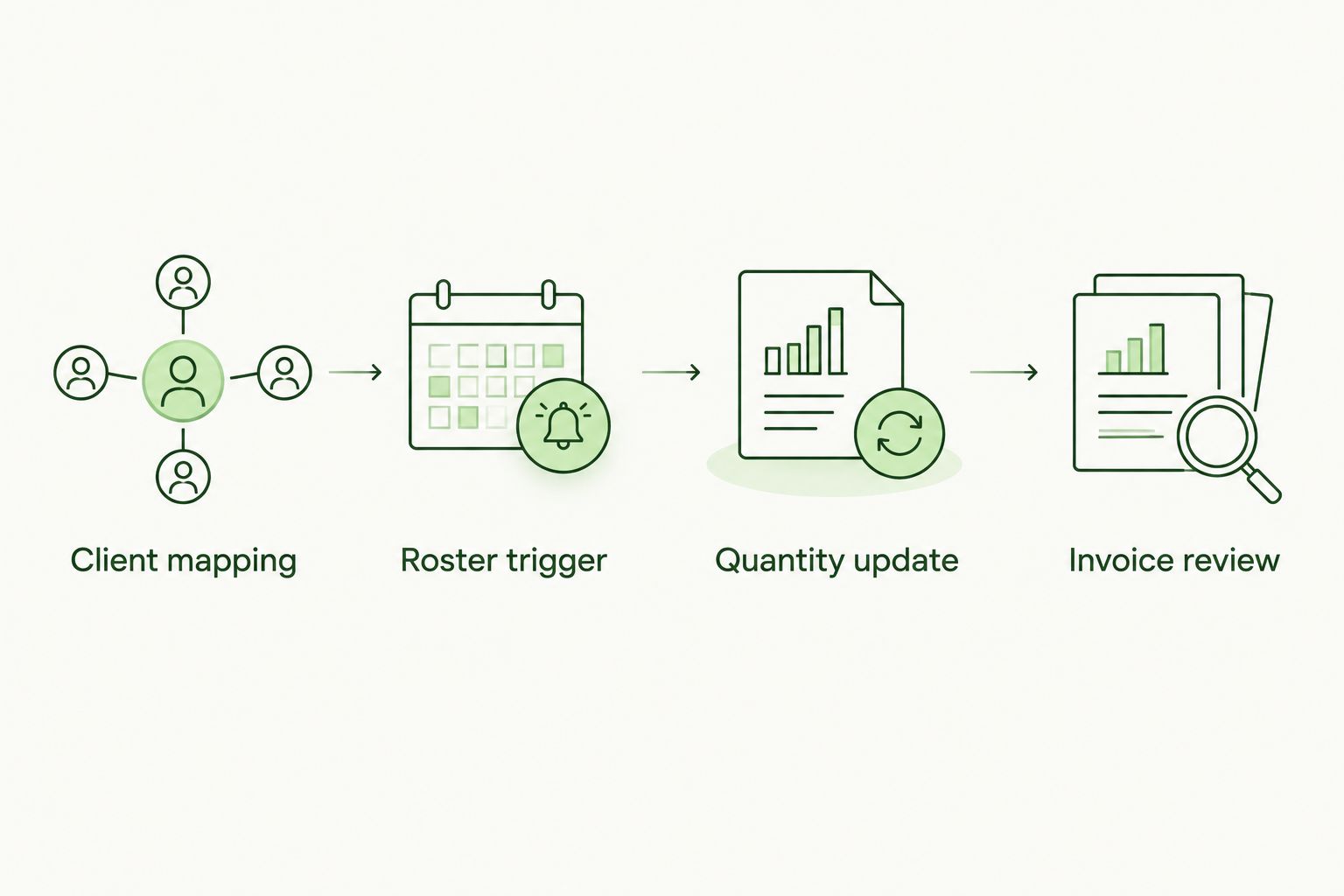
Verify the quantity update before reviewing the invoice.
Make the update idempotent: processing the same source state again must not create another adjustment with a different billing effect. Use a durable record of the client, service, period, and processed source state to detect repeats.
Invoice review and release
Quantity automation prepares billing data. Invoice automation acts on it. Treat those as separate controls in your 2026 setup.
Verify the billing result
- Run the pilot through your normal Autotask billing process and inspect the applicable output in Invoice Wizard.
- Match the training invoice line to the correct company, contract, service quantity, and billing period. Inspect any adjustment lines created by effective-dated changes.
- Compare the invoice quantity with the retained roster calculation. Explain differences before approval; do not overwrite the evidence merely to make the totals match.
- Follow your established approval, posting, and delivery process only after reconciliation passes. Keep failures in an exception queue with a named billing owner.
Expected result: The invoice reflects the agreed seat policy and period, not merely the latest roster total. Billing staff can trace the line back to its source calculation.
Test 3 lifecycle events before expansion: a user joining, a user leaving, and a user being disabled. Run the same unchanged input 2 consecutive times as well. The second run must not create a duplicate billing effect.
Choose your automation boundary
These are workflow options, not claims about a particular connector's capabilities. Choose the boundary your verified connection and operating controls can support.
| Workflow option | Best for | Advantage | Limitation |
|---|---|---|---|
| Manual quantity entry | Pilot validation | Lets billing staff inspect every change | Requires repeated entry and reconciliation |
| Automated quantities, reviewed invoices | MSPs establishing repeatable client billing | Removes quantity re-entry while retaining a release checkpoint | Exceptions still require a billing owner |
| Automated quantities and invoice release | Established workflows with tested exception controls | Removes the separate manual release step | Incorrect mapping or date rules can reach clients without review |
Use automated quantities with reviewed invoices as the initial production boundary. Move beyond it only after duplicate processing, incomplete rosters, effective dates, and client mapping have passed your tests. An unattended process needs a clear stop condition, not just a schedule.
Update quantities whenever users change
A second workflow updates the recurring-service quantity after a verified user lifecycle event rather than waiting for the billing-boundary snapshot. Use it when your client agreement calls for effective-dated changes and your connection supports the required operations.
- Receive the supported join, leave, or status-change event and identify the affected client organization.
- Retrieve that client's current roster and recalculate the complete billable quantity. Do not blindly add or subtract a seat for every event.
- Compare the recalculated quantity with Autotask, apply the agreed effective date, and verify the resulting state.
- Reconcile again before billing. Route late-arriving events and already-invoiced periods to the billing owner instead of silently rewriting history.
Expected result: Supported lifecycle events update the intended service without duplicate increments or decrements. The billing-boundary check remains the final comparison against the client agreement.
The advantage is earlier quantity maintenance. The drawback is more event handling: retries, out-of-order notifications, and status reversals need explicit rules. For your 2026 rollout, do not adopt event-driven updates unless that extra complexity serves the contract's billing requirements.
Troubleshooting
The invoice shows the previous quantity
Check the contract, service, effective date, and period used by the quantity write. Read the service back and inspect the billing output. A successful connection does not establish that the change applies to the invoice under review.
The seat count suddenly drops
Stop the write and check source completeness, filters, and pagination. Compare the excluded users with the previous calculation. An unexpectedly empty roster should trigger review before the workflow interprets it as a legitimate reduction.
A quantity change appears twice
Inspect retries and the stored processing record. A request can succeed even when the caller does not receive its response. Read the current state before retrying, and ensure repeated input resolves to the same intended quantity.
The wrong client receives the update
Disable writes for the affected mapping and audit the company, contract, and service identifiers. Replace display-name matching with explicit identifiers. Reconcile impacted billing records before re-enabling the connection.
Authentication succeeds but the write fails
Check the API user's permissions, the connector's supported operations, and the returned error. Route denied or unsupported writes to review. Repeated retries do not fix a permission problem or add an operation the connector lacks.
Customize your workflow
Once the pilot works, expand client coverage without changing the core controls. Keep mappings, seat policies, credentials, and processing history separate so one client's exception does not block or alter another client's billing.
- Separate billing from compliance evidence. An invoice proves what you charged; completion records support what training occurred. Retain both under the correct client scope.
- Assign exception ownership. Specify who fixes mapping errors, roster discrepancies, rejected writes, and invoice differences.
- Handle contract changes deliberately. Ended or replaced agreements need a mapping review before another automated write.
- Reassess the resale model. Defend Wise security awareness training removes per-seat supplier billing, but per-seat client billing still creates quantity administration. Choose it because it fits your client agreement, not because the supplier requires it.
Review these controls when you revise your 2026 service package. Automation should implement the agreement you sold, not quietly become a different agreement.
FAQ
How do I automate per-seat security awareness training invoices in Autotask?
Connect a verified training roster source to the relevant Autotask recurring-service quantity, then reconcile the invoice before release. Define client mappings, billable-user rules, and effective dates before enabling writes.
Does updating a service quantity automatically send an invoice?
A service-quantity update is not the same operation as invoice approval or delivery. Keep quantity maintenance and invoice release as separate workflow stages, and verify the billing output before sending it.
Can I bill clients per seat when my training supplier uses a flat fee?
Yes, supplier billing and client billing are separate commercial arrangements. Defend Wise uses a flat-fee training model; your client agreement determines whether you charge by seat, by organization, or within a service bundle.
Should I use a monthly roster or update seats whenever users change?
Use the method that matches your client agreement's quantity and effective-date rules. A billing-boundary snapshot simplifies reconciliation; event-driven updates require additional controls for retries and late-arriving changes.
Should disabled users count toward training invoices?
Count disabled users only when the agreed billing policy includes them. Document that rule and apply it consistently rather than assuming directory status and billable status are identical.
What should I test before releasing automated invoices?
Test client mapping, joins, departures, disabled users, effective dates, incomplete roster retrieval, and duplicate processing. Confirm that repeated unchanged input does not create another billing effect.
What is Defend Wise best for in this workflow?
Defend Wise is best for MSPs seeking white-label security awareness training without per-seat supplier billing. Your Autotask contract setup and verified connection method remain responsible for client quantity updates and invoicing.
One last thing
Do not use training completion as your seat counter. Completion measures participation; your agreement defines billing eligibility. A user who has not completed an assignment is not automatically a non-billable user.
Keep those records separate. You will be able to explain the client invoice without distorting the training evidence—and investigate training gaps without accidentally changing the bill.