Office 365 Connectors: An MSP Guide to Safer Microsoft 365 Workflows
Office 365 connectors need inventory, ownership, migration, and security controls. Use this MSP guide to reduce client risk.
DefendWise
DefendWise
TL;DR
Office 365 connectors are not one clean category anymore. An MSP might be talking about Teams channel connectors, incoming webhooks, Power Automate connectors, or Exchange Online mail-flow connectors, and each one has a different owner, risk, and migration path.
The practical MSP job is to build a connector register for every client tenant, migrate retired Teams connectors to supported Workflows where needed, secure Exchange Online mail-flow connectors, and train users on what connector-driven alerts actually mean. The outcome is not “more automation.” It is cleaner ownership, fewer orphaned workflows, safer alerting, and client-ready evidence.
What are Office 365 connectors?
“Office 365 connectors” is a messy phrase because Microsoft 365 uses connector language in several places.
For MSP operators, that ambiguity matters. If a client asks whether their Office 365 connectors are safe, broken, or being retired, the first answer should be: “Which connector type?”
The common buckets are:
| Connector type | Where it lives | What it does | MSP risk if unmanaged |
|---|---|---|---|
| Teams / Microsoft 365 Connectors | Microsoft Teams channels | Posts updates from apps and services into Teams | Retirement, broken alerts, orphaned owners, unmanaged webhook URLs |
| Incoming webhooks / Workflows | Teams + Power Automate | Receives HTTP requests and posts messages or cards | User-owned flows, message limits, rate limits, poor ownership |
| Power Automate connectors | Power Platform | Connects Microsoft and third-party apps in workflows | Over-permissioned automation, owner drift, DLP gaps |
| Exchange Online mail-flow connectors | Exchange admin center | Routes or restricts email between Microsoft 365, on-premises systems, devices, or partners | Mail relay abuse, spoofing, delivery bypass, audit gaps |
Microsoft’s Teams documentation says Microsoft 365 Connectors, previously called Office 365 Connectors, are nearing deprecation and points teams toward Workflows in Microsoft Teams for webhook-style posting. Microsoft’s Exchange Online documentation uses connectors differently: they are instructions that customize mail flow to and from a Microsoft 365 organization, and most cloud-only tenants do not need them for regular mail flow.
That means a useful MSP runbook has to separate Teams notification plumbing from Exchange mail-flow control. Mixing them together creates bad advice.
Why this matters for MSPs
For a single internal IT team, connector sprawl is annoying. For an MSP, it becomes a fleet problem.
You may have dozens of client tenants, each with a different mix of Teams channels, alert webhooks, scanner relays, partner mail-flow controls, Power Automate flows, and legacy automation built by someone who left 2 years ago.
The commercial and operational risk shows up in 5 places.
1. Broken alerts become missed incidents
Many Teams connectors are not “nice to have” notifications. They carry backup failures, SIEM alerts, ticket updates, vulnerability scans, vendor notices, and operational warnings.
Microsoft recommends moving Teams connector scenarios toward Power Automate-based Workflows as the older connector experience is retired. If an MSP waits until alerts silently stop, the client sees a service failure. Worse, the MSP may miss a security or backup signal that should have triggered action.
2. User-owned flows become orphaned workflows
Microsoft’s Teams webhook documentation notes a practical limitation: Workflows are linked to specific users, not to the team or channel itself. Without co-owners, they can become orphan flows when an owner leaves. Microsoft’s Power Automate support guidance explains how admins can identify orphaned flows and assign new co-owners.
That is not just a Microsoft admin detail. It is an MSP operating model issue. If a client’s billing alert, backup alert, or security escalation workflow depends on a single user account, the MSP needs ownership hygiene before it can promise reliability.
3. Exchange connectors can become an email security problem
Exchange Online connectors are powerful because they can affect mail flow. Microsoft documents symptoms of compromised connectors, including sudden outbound mail spikes, unauthorized connector changes, domains that are not provisioned or registered, and suspicious connector activity.
For MSPs, this is a good reminder: do not treat every connector as harmless plumbing. A mail-flow connector is part of the client’s email security posture. It should have an owner, a reason, a source, a change record, and a review cadence.
4. Connector changes are hard to explain after the fact
When a client asks why an alert stopped, why a message was relayed, or why a workflow posted into the wrong Teams channel, “someone changed a connector” is not a client-ready answer.
You need enough evidence to show:
- what the connector was for;
- who owned it;
- when it was last reviewed;
- whether the change was expected;
- what the MSP did to test or fix it;
- what still needs a client decision.
Microsoft Purview audit logs can support investigation across Microsoft 365 activities, but the MSP still needs a practical tenant register and operating notes to make that evidence useful in QBRs and audits.
5. Connectors are now part of security awareness
Office 365 connector work is not only admin work. It affects people.
End users and client managers need to understand which Teams alerts matter, what a suspicious notification looks like, when to report unusual automation behavior, and why webhook URLs should not be pasted into tickets, documents, or chat threads.
If a connector posts a fake-looking alert into a Teams channel, people need a verification habit. If a real connector alert says “backup failed,” people need to know the escalation path. This is where awareness training becomes operational, not generic.
What MSPs actually need
MSPs do not need a 40-page academic connector policy. They need a repeatable way to find, classify, migrate, secure, and explain connector usage across client tenants.
Start with a tenant-level connector register.
| Field | Why it matters | Example entry |
|---|---|---|
| Client / tenant | Keeps evidence separated | Acme Manufacturing |
| Connector category | Prevents Teams vs Exchange confusion | Teams Workflow webhook |
| Business purpose | Stops “mystery automation” | Backup failure alerts to #operations |
| Connected system | Identifies source risk | Backup platform |
| Owner | Establishes accountable person | MSP service desk manager |
| Co-owner / fallback | Prevents orphaned workflow | Client IT lead |
| Channel / scope | Shows blast radius | Teams Operations channel |
| Data sensitivity | Helps DLP and access decisions | Operational alert, no PII |
| Authentication / trigger type | Shows security posture | Webhook URL, Power Automate flow |
| Last tested | Proves it still works | 2026-07-02 |
| Review cadence | Keeps it from going stale | Quarterly |
| Migration status | Handles retirement | Migrated from legacy connector |
| Evidence link | Supports QBR/audit | Change ticket or export |
That register gives the MSP one view across client tenants. It also turns connector cleanup into a packaged service task: review, fix, test, and report.
Step-by-step: how to manage Office 365 connectors across clients
1. Define connector categories before you inventory anything
Do not start by exporting everything called a connector. Start by agreeing on categories: Teams connectors and webhooks, Power Automate flows, Exchange Online mail-flow connectors, and third-party app integrations.
This prevents false confidence. A client may have no Teams connectors left but still have risky Exchange mail-flow connectors. Another client may have clean mail flow but a mess of user-owned Power Automate flows.
2. Inventory Teams connector and webhook use
For Teams scenarios, identify each channel or chat that receives automated messages. Capture the source system, business purpose, owner, co-owner, and whether it depends on legacy Microsoft 365 Connectors or a Power Automate Workflow.
Microsoft’s Teams webhook documentation says Workflows can receive HTTP requests and post messages or Adaptive Cards into channels or chats. It also notes limits such as message size and throttling. Those limits belong in the MSP’s test plan because some legacy connector payloads may not behave the same way after migration.
3. Migrate retired Teams connector scenarios carefully
Microsoft’s developer blog says Office 365 Connectors in Teams are being retired and recommends Power Automate workflows for relaying information into and out of Teams. For MSPs, the safest migration pattern is:
- copy the current connector purpose into the register;
- build the replacement Workflow;
- assign co-ownership;
- test the payload;
- confirm channel visibility;
- confirm the alert runbook;
- disable the old connector only after the replacement passes;
- record the evidence.
Do not assume that “posted successfully” equals “operationally ready.” A backup alert that lands in the wrong channel, posts as the wrong owner, truncates key details, or loses button behavior may still fail the client workflow.
4. Review Exchange Online mail-flow connectors separately
Exchange Online connectors deserve their own review path. Microsoft says they are used for scenarios such as hybrid mail flow, partner security restrictions, SMTP relay from devices or apps, and secure mail flow with partners. Microsoft also says most Microsoft 365 organizations do not need connectors for regular mail flow.
For each Exchange connector, ask:
- Is this connector still needed?
- Is the source IP, certificate, domain, or partner restriction current?
- Is it tied to a scanner, app, partner, or on-premises server that still exists?
- Could it bypass filtering or weaken delivery controls?
- Who approved it?
- What evidence proves it was reviewed?
Microsoft’s Defender guidance on compromised connectors is a useful incident-response reference. It lists signs such as sudden outbound mail volume changes, unauthorized connector edits, and newly created inbound connectors that were not created by an admin.
5. Put owner and co-owner rules into the runbook
Power Automate ownership is not paperwork. It is resilience.
If a Teams Workflow posts operational alerts, give it a named owner and co-owner. If the owner leaves, Microsoft’s orphan-flow guidance explains how admins can assign a new co-owner and maintain continuity.
For MSPs, the rule is simple: any connector or workflow that supports a client service should have an MSP-owned continuity path. If the only owner is a single client user, document the risk and get a client decision.
6. Add connector checks to QBR and audit evidence
Connector hygiene is a good QBR topic because it is practical and visible. You can show clients that you are not only selling tools; you are maintaining the operating layer between alerts, people, and controls.
A useful QBR summary might include:
- number of connector-backed workflows reviewed;
- number migrated from legacy Teams connectors;
- number with owner and co-owner confirmed;
- Exchange connectors reviewed;
- stale connectors removed or disabled;
- open client decisions;
- next-quarter risks.
Keep the language plain. Most clients do not need to understand every Power Automate setting. They need to know that the MSP has reduced silent failure risk and cleaned up old automation.
7. Train users on connector-driven alerts
Security awareness should teach people how to work with the alerting environment they actually see.
For connector-driven Teams alerts, train users to ask:
- Is this a channel where this alert normally appears?
- Does the source system match the message?
- Is the alert asking me to click, approve, pay, reset, or share credentials?
- What is the verification path?
- Should this go to the MSP service desk, the client manager, or the security lead?
For mail-flow connectors, train admins and technical users to report unusual delivery behavior, unexpected relay changes, or suspicious spikes in outbound mail.
What good looks like
A mature MSP connector workflow has 6 signs.
Tenant separation
Every client has its own connector register, evidence, and decisions. Do not blend connector findings into one fleet-wide list without client-level detail. Fleet views are useful for MSP operations, but clients need their own record.
Named ownership
Every critical connector has an owner and fallback owner. For Workflows, co-ownership is part of the build standard, not an afterthought.
Clear criticality
A low-risk social notification is not the same as a backup failure, security alert, or mail-flow control. Label connector criticality so urgent workflows receive better testing and monitoring.
Retirement and migration tracking
Legacy Teams connectors should have a migration state: unknown, inventoried, replacement built, tested, old connector disabled, or exception approved.
Exchange connector change control
Mail-flow connectors should have approval and review notes. Microsoft’s guidance makes clear that connectors can affect email routing and security controls. Treat changes as security-relevant.
Client-ready reporting
A good report says what changed, what risk was reduced, and what the client needs to decide. It does not dump raw connector exports and expect the client to interpret them.
Mistakes to avoid
Mistake 1: treating all connectors as the same thing
Teams webhook migration advice does not automatically apply to Exchange mail-flow connectors. Exchange connector incident-response advice does not answer every Power Automate ownership question. Separate the categories.
Mistake 2: migrating without testing the business workflow
A Workflow can be technically valid and still fail the MSP process. Test the alert as the service desk sees it. Confirm the channel, message content, owner, co-owner, and escalation path.
Mistake 3: leaving Workflows tied to departed users
User-owned automation fails quietly when ownership is not maintained. Microsoft explicitly documents orphaned flows and how admins can assign new co-owners. Make co-owner review part of quarterly hygiene.
Mistake 4: letting Exchange connectors bypass normal scrutiny
Exchange connectors can be necessary for hybrid, relay, or partner scenarios. They can also be abused or misconfigured. Review them with the same seriousness as transport rules, accepted domains, and authentication settings.
Mistake 5: using connector cleanup as a one-time project
The first cleanup helps. The recurring review creates value. New tools, client staff changes, channel reorganizations, and Microsoft platform changes will keep connector risk moving.
Framework or technical mapping
For MSPs, Office 365 connector governance can support broader control conversations without pretending that connector cleanup equals compliance.
Use it as supporting evidence for:
| Framework area | How connector governance helps | Evidence to keep |
|---|---|---|
| Asset / service inventory | Shows where automated alert and mail-flow integrations exist | Tenant connector register |
| Access control | Shows owner, co-owner, and permission review | Workflow ownership notes |
| Change management | Shows what changed and why | Change tickets, migration test records |
| Monitoring | Shows alert routes and criticality | Teams channel map, alert test results |
| Email security | Shows mail-flow connector purpose and review | Exchange connector export and review notes |
| Awareness and training | Shows users know how to handle connector-driven alerts | Training assignment, completion, and policy notes |
CISA’s Microsoft 365 Exchange Online baseline is written for federal cloud security, but non-federal organizations can still use it as a useful reference for strengthening Exchange Online configurations. Microsoft’s Exchange Online and Defender documentation should remain the primary source for connector-specific technical steps.
How a flat-rate MSP SAT platform helps
Connector hygiene only works if people know what to do with the alerts and evidence the MSP is producing. DefendWise helps MSPs deliver security awareness training under their own brand, across clients, with a flat fee, unlimited users, Microsoft 365 sync, and branded reporting.
For an MSP packaging Microsoft 365 connector reviews into a managed service, that means the human side can scale with the technical work: train every client user on reporting, verification, suspicious alerts, and safe handling of automation messages without turning coverage into another per-seat margin problem. Start a free 7-day trial if you want to see how branded awareness and reporting could sit beside your Microsoft 365 operations work.
Frequently asked questions
What are Office 365 connectors?
Office 365 connectors can mean several Microsoft 365 integration patterns: legacy Teams connectors, incoming webhooks, Power Automate connectors, or Exchange Online mail-flow connectors. The right answer depends on where the connector lives and what it controls.
Are Office 365 connectors in Microsoft Teams being retired?
Microsoft says Microsoft 365 Connectors in Teams are nearing deprecation and recommends Workflows in Teams for receiving webhook requests and posting messages. MSPs should inventory existing connector-based alerts, migrate them where needed, and test the replacement before disabling the old path.
Are Exchange Online connectors being retired too?
No, Exchange Online mail-flow connectors are a separate Exchange feature. Microsoft’s Exchange documentation still describes scenarios where connectors are needed, such as hybrid mail flow, SMTP relay from devices or apps, and secure mail with partner organizations.
What is the safest replacement for Teams Office 365 connectors?
For many webhook-style Teams alerts, Microsoft points to Power Automate-based Workflows using the “When a Teams webhook request is received” trigger. The safest replacement is not only the new trigger; it is the complete operating setup: owner, co-owner, tested payload, correct channel, alert runbook, and evidence record.
Can a connector be compromised?
Yes. Microsoft’s Defender for Office 365 guidance explains compromised Exchange connector scenarios, including unauthorized connector creation or modification and suspicious outbound mail activity. Teams webhook URLs and Workflows also need safe handling, ownership, and review because they can post into configured collaboration spaces.
How often should MSPs review Microsoft 365 connectors?
Review critical connectors quarterly, during onboarding and offboarding, after client tenant changes, and after major Microsoft platform changes. Low-risk notification workflows can follow the normal QBR cadence, but mail-flow connectors and security-alert workflows deserve faster review when ownership or behavior changes.
What evidence should MSPs keep for connector reviews?
Keep the connector register, owner and co-owner notes, migration test results, Exchange connector exports, relevant audit log references, change tickets, and client decisions. The goal is to prove that the MSP knows what the connector does, why it exists, and when it was last checked.
How does DefendWise fit into Office 365 connector governance?
DefendWise does not replace Microsoft 365 administration. It supports the human layer around that administration: branded training, Microsoft 365 sync, client reporting, and awareness campaigns that help users understand reporting, verification, suspicious alerts, and safe handling of security messages.
Related DefendWise reading
- How to maintain single pane of glass management across clients
- Bulk import users to a multi-tenant training platform
- Security awareness training effectiveness
- Building auditor-ready reports for clients
Header image brief for Picasso
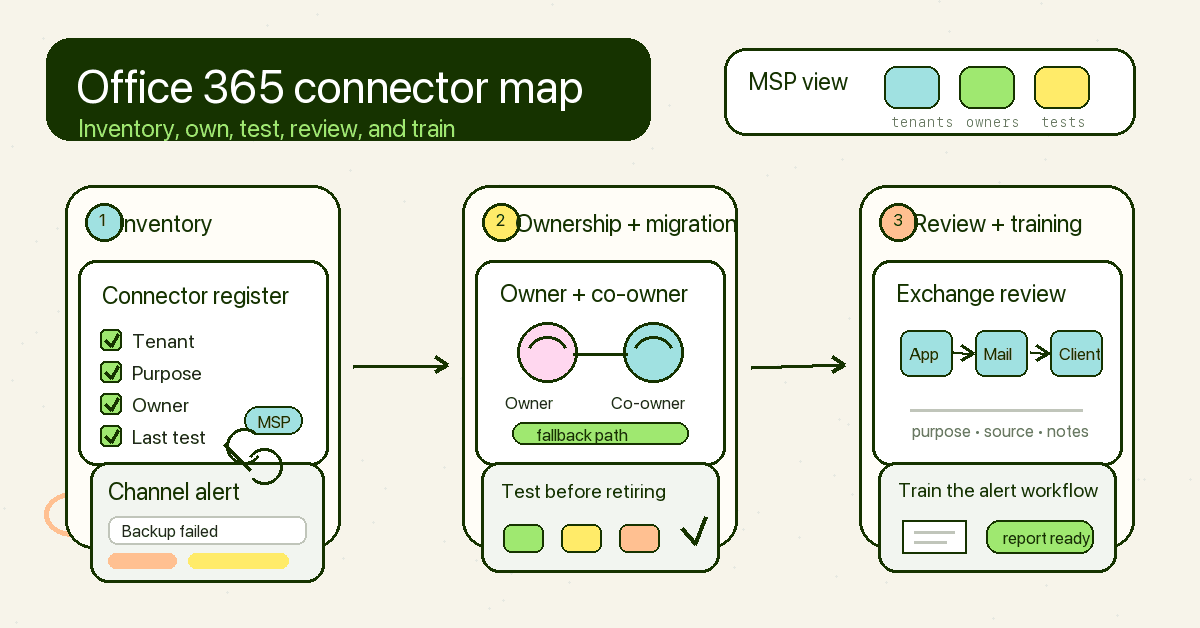
- Source TL;DR: Office 365 connectors are not one clean category: Teams webhooks, Power Automate Workflows, and Exchange Online mail-flow connectors all carry different risks. MSPs need a tenant-level register, owner/co-owner controls, migration testing, Exchange connector review, and user training so alerts and mail-flow controls stay reliable.
- Primary pillar: zero admin
- Infographic thesis: Show connector sprawl becoming an MSP-controlled operating layer: inventory, ownership, migration, review, and training.
- Suggested layout: 3-part map
- Short on-image text candidates: “Connector register”, “Owner + co-owner”, “Test before retiring”, “Exchange review”, “Train the alert workflow”
- Key objects: Teams channel card, webhook link, Exchange mail-flow diagram, tenant register checklist, MSP dashboard, training report
- Avoid: fake Microsoft UI, vendor logos, fake metrics, compliance badges, padlocks, hoodies, matrix/cyber theatre, unreadable webhook strings
- Crop needs: 1200x628 blog/OG, plus social-safe 1200x627
Sources
- Microsoft 365 Developer Blog: Retirement of Office 365 connectors within Microsoft Teams
- Microsoft Learn: Create Incoming Webhooks
- Microsoft Learn: Webhooks and connectors in Teams
- Microsoft Learn: Microsoft Teams connector reference
- Microsoft Learn: Configure mail flow using connectors in Exchange Online
- Microsoft Learn: Respond to a compromised connector in Microsoft 365
- Microsoft Learn: Mail flow rules in Exchange Online
- Microsoft Learn: Manage orphaned flows when the owner leaves the organization
- Microsoft Learn: Audit log activities
- CISA: Microsoft Exchange Online Secure Cloud Business Applications baseline
Internal link candidates for Woz
- DefendWise homepage — CTA / platform reference
/blog/how-to-maintain-single-pane-of-glass-management-across-clients— multi-tenant operations support/blog/bulk-import-users-to-multi-tenant-training-platform— tenant setup and user lifecycle support/blog/security-awareness-training-effectiveness— measurement and reporting support/blog/building-auditor-ready-reports-for-clients— evidence and reporting support