How to connect Google Workspace to auto-enroll new hires in training
Connect Google Workspace to auto-enroll new hires in training with provisioning and assignment rules. Validate client routing and prevent duplicates.
DefendWise
DefendWise
Instead of manually adding every new hire to security awareness training, connect Google Workspace directory data to a supported training enrollment workflow so eligible employees receive an assignment automatically. The connection needs two working parts: user provisioning and a rule that assigns training—not just Google sign-in.
TL;DR
- Connect Google Workspace to auto-enroll new hires in training through supported provisioning plus an enrollment rule.
- Google sign-in alone does not assign security awareness training to new hires.
- Defend Wise suits MSPs seeking flat-fee, white-label security awareness training; verify connector support before deployment.
- Test tenant routing, duplicate prevention, and assignment evidence before enabling automatic enrollment.
Why this matters
A directory account is not a training assignment. Your workflow must identify an eligible employee, create or match the learner, place that learner in the correct client organization, and assign the required training.
Defend Wise is best for MSPs that want flat-fee, white-label security awareness training. Treat the directory connection as a separate acceptance check: confirm the supported provisioning method and assignment behavior before choosing an implementation. Review Defend Wise for the platform’s current offering.
For your 2026 onboarding runbook, replace “user synced” with a stronger completion criterion: the correct learner has the correct assignment in the correct client organization. An imported profile without training is unfinished onboarding.
Before you start
- Access: Have a Google Workspace administrator who can review users and authorize the chosen connection, plus training-platform access to manage learners and assignments. Obtain approval for the requested permissions.
- Materials: Prepare the client organization mapping, eligible employee population, exclusion rules, training assignment, and approved onboarding deadline. Confirm that the destination supports automated learner creation and assignment through its documented connector or API.
- The gotcha: Account creation is not necessarily a start date. Pre-created accounts, suspended accounts, shared mailboxes, and employees outside the training population need explicit handling before the first import.
Do not authorize a broad connection and decide the population afterward. First define who should enter training and when; then grant the access needed to implement that rule.
Connection method
Choose the connection based on documented capabilities, not the presence of a Google logo. Authentication, provisioning, and enrollment solve different problems.
| Method | Best for | Advantage | Limitation |
|---|---|---|---|
| Supported native directory connector | Teams whose training platform documents Google Workspace provisioning and assignment | Keeps setup within the supported product workflow | Filters, refresh behavior, and assignment rules depend on the connector |
| Custom directory-to-training workflow | Teams with engineering ownership and documented source and destination APIs | Gives control over eligibility, tenant mapping, and duplicate prevention | Requires monitoring, credential maintenance, and error handling |
| Google sign-in alone | Employees accessing an existing training account | Simplifies authentication | Does not establish automatic enrollment by itself |
Use a supported native connector when it meets the enrollment requirements. Build a custom workflow only when someone owns its operation and the destination exposes the required actions. Do not treat an API reporting feature as proof that the API can create learners or assignments.
Configure the directory source
- Open the Google Admin console and select Directory, then Users. Review the accounts that belong in the client’s training population, including their primary email addresses and account status.
- If your documented connector supports group-based filtering, review the relevant membership under Directory, then Groups. Choose a group with an accountable owner rather than assuming every directory account represents an employee.
- Define Eligibility in the implementation record: which active accounts qualify, which accounts are excluded, and what event makes a pre-created account eligible. This is a proposed runbook field, not a vendor-specific screen label.
- Authorize the documented source connection. Review the consent request against the required directory operations; do not grant unrelated access simply to clear an authorization error.
- Preview the selected population before allowing writes to the training platform. Compare that population with the approved employee roster and resolve discrepancies.
Expected result: The source returns eligible employees and excludes the accounts your policy excludes. Save the filter definition and its owner in the 2026 configuration record so another technician can explain why an account qualified.
Configure client routing
- Define Client mapping in the runbook. Associate each source Google Workspace customer with the intended training client organization; do not route every source into the MSP’s own training account.
- Define Identity matching using a stable source identifier when the connector and destination support it. Google’s Directory API exposes a user ID; preserve it in your mapping when implementing a custom workflow.
- Map the learner attributes the destination actually requires. Use the primary email address for delivery, and include department or other attributes only when an assignment rule needs them.
- Check the destination for existing learners before enabling creation. Document how the workflow handles a match, a conflicting record, and an email-address change.
- Make unresolved routing a stop condition. Send an exception to the responsible administrator instead of guessing the client organization.
Expected result: Every eligible source identity resolves to the intended client and learner record. Reprocessing an existing identity updates or matches that record rather than creating another learner.
A flat-fee training model removes per-seat billing friction, not the need for accurate records. Defend Wise security awareness training still belongs inside a deployment process that checks client boundaries and employee eligibility.
Configure training assignment
- Select the approved onboarding training in the destination platform. Confirm the supported way to assign it automatically before enabling learner provisioning.
- Define Assignment rule in the runbook: an eligible learner without the required onboarding assignment receives it. An existing assignment or completion must be checked before another assignment is created.
- Set the deadline from the client’s documented onboarding policy. Distinguish the assignment date from the employee’s start date when accounts are created ahead of employment.
- Define invitation behavior. Decide whether provisioning sends a message immediately or whether notification waits until the employee becomes eligible to begin training.
- Record the outcome of each attempted assignment. Capture the source identity, client organization, assignment reference, timestamp, and error status where the supported interfaces expose them.
Expected result: An eligible new hire has an actual training assignment, not merely a learner profile. The technician can distinguish successful provisioning from successful enrollment without opening each employee record.
The workflow has four separate checkpoints: Directory source, Client routing, Training assignment, and Enrollment evidence. Keep them separate in your implementation so a successful directory read cannot conceal a failed assignment.
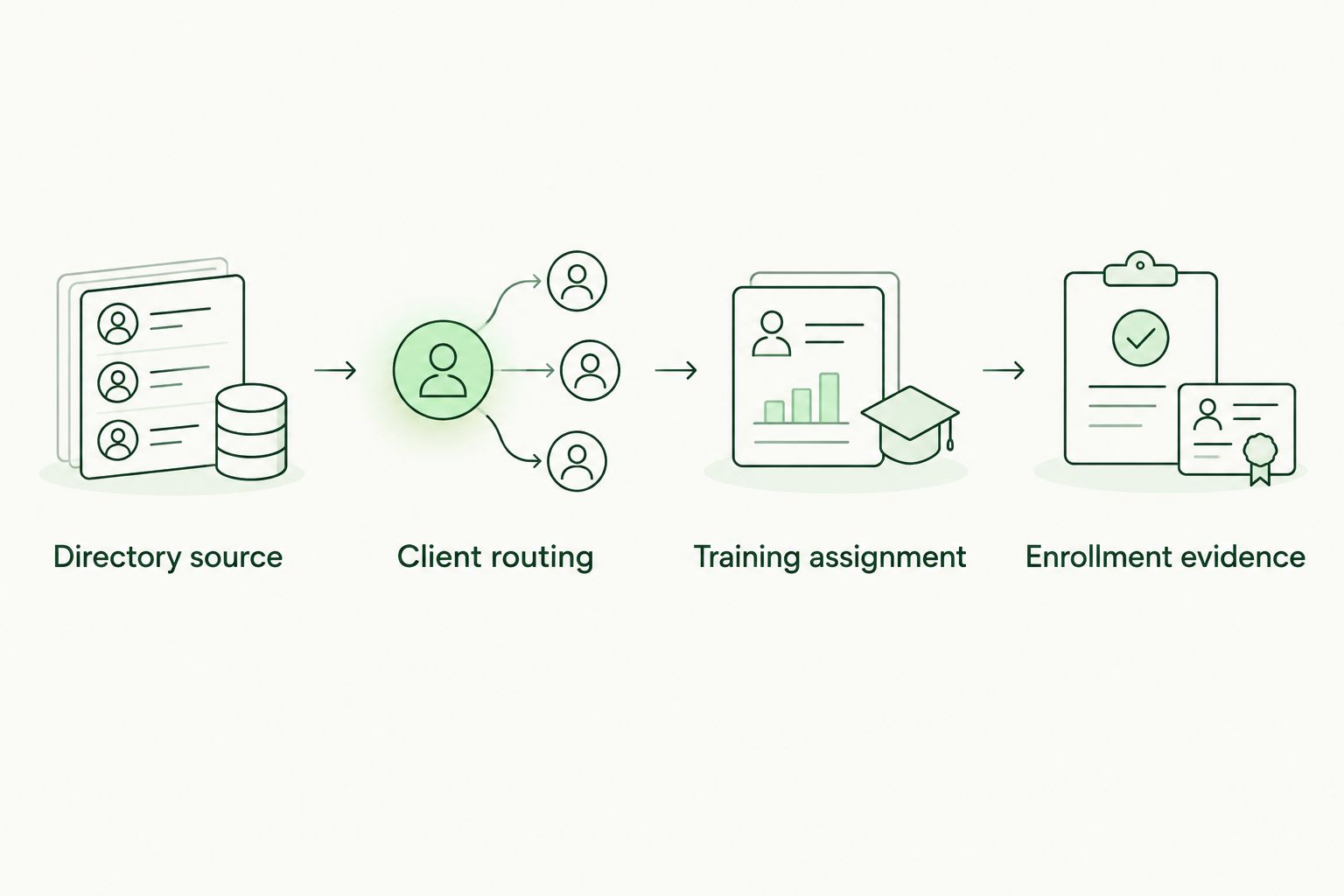
A directory connection is complete only when the intended training assignment is recorded.
Configure validation and monitoring
- Prepare 3 authorized test accounts: an eligible new hire, an excluded account, and an existing learner. Use test identities approved by the client, not an employee’s account without permission.
- Run the workflow against the test population. Confirm that the new hire receives training, the excluded account stays out, and the existing learner does not receive a duplicate onboarding assignment.
- Process the same population across 2 consecutive sync runs. Verify that repeated processing produces the same intended enrollment state rather than extra profiles or assignments.
- Test a primary email-address change against your identity-matching design. Confirm that the workflow preserves the learner’s identity and history through its supported update mechanism.
- Assign an operational owner and an alert destination. Define how a technician finds failed records, retries a failed assignment, and verifies recovery.
Expected result: The pilot demonstrates correct enrollment, correct exclusion, and safe repeat processing. Keep the results with the 2026 deployment record before expanding the population.
Do not promote a workflow because its connection test passes. A connection test proves access; your pilot must prove the business outcome. Inspect the assignment itself and retain evidence of the validation.
Enroll employees when eligibility changes
A new-account trigger misses employees whose accounts already existed before they became eligible. Transfers, returning staff, and pre-created accounts need an adjacent workflow that responds to current eligibility.
Use membership or attribute changes only when your chosen connector supports detecting them. Otherwise, implement scheduled reconciliation through documented interfaces: compare eligible source identities with the destination’s enrollment state and resolve the difference.
- Re-evaluate the approved eligibility rule when the relevant source data changes or at the configured reconciliation interval.
- Match the employee to the existing learner before creating anything.
- Check whether the required assignment or accepted completion already exists.
- Assign training only when the policy requires it, then record the outcome.
Best for pre-created accounts: Eligibility-based reconciliation handles the gap between account creation and employment readiness. Its trade-off is extra rule ownership: someone must maintain group membership or the chosen source attributes.
For 2026 service documentation, write down how returning employees are handled. Re-enrollment is a client policy decision; it must not happen accidentally because an account disappeared and returned between sync runs.
Troubleshooting
The learner exists, but training is missing
Provisioning succeeded while assignment failed or never ran. Inspect the destination assignment rule, its eligibility conditions, and the assignment action’s response; retry the failed assignment after correcting the cause, not the entire learner-creation process.
Existing employees received onboarding invitations
The first run included existing accounts, and the workflow treated them as new enrollments. Pause invitations, compare imported learners with existing assignments and completion records, and establish an explicit initial-import policy before restarting.
A creation timestamp alone does not establish whether someone needs onboarding training. Use the approved employee population and training policy.
Duplicate learner records appeared
The workflow matched on an address that changed, failed to find an existing learner, or retried creation without checking the destination. Review the source-to-destination identity mapping and make repeat processing safe before resuming.
Use the platform’s supported correction process for duplicates. Do not delete records containing completion history just to make the roster look clean.
Google authorization fails or stops working
The authorizing account, application access policy, or granted permissions need review. Have an authorized administrator inspect the app’s access and the connector’s documented requirements, then reauthorize through the supported process.
Do not resolve a blocked connection by granting every permission. Confirm which operation failed and authorize only the access the implementation requires.
A learner appears in the wrong client organization
Stop destination writes immediately. Correct the client mapping, identify affected records and notifications, and use the supported administrative process to repair them before replaying events.
Add a routing validation check to prevent recurrence. A successful API response is not proof that the learner reached the correct client.
Customize your workflow
Once onboarding works, extend lifecycle coverage rather than adding more enrollment triggers. Define what happens when an employee changes role, becomes suspended, leaves the organization, or returns.
Keep enrollment and offboarding as separate rules. Suspension should not silently erase historical training evidence; document how the destination handles inactive learners and retention before automating that action. The guide to automatically removing offboarded employees covers the adjacent offboarding workflow.
For an MSP evaluating Defend Wise, separate commercial fit from integration acceptance. Flat-fee, white-label security awareness training addresses the service model; the directory pilot must establish supported provisioning, correct assignment, and usable evidence.
Assign a named owner for the 2026 workflow. Record who approves eligibility changes, who investigates failures, and who confirms that a repaired connection has caught up with missed enrollments.
FAQ
How do I connect Google Workspace to auto-enroll new hires in training?
Use a supported directory connector or documented API workflow to identify eligible users, create or match learners, and assign onboarding training. Validate the assignment outcome before enabling the workflow for the full employee population.
Does signing in with Google automatically enroll employees in training?
Google sign-in alone does not establish automatic training enrollment. Authentication lets an employee access an account; provisioning and assignment require their own supported configuration.
Can I enroll only employees in a particular Google Group?
Use group-based enrollment when the chosen connector or custom implementation supports reading and filtering that membership. Define the group owner and verify the actual selected population before enabling assignments.
Will existing employees receive training when I first connect the directory?
Existing employees receive assignments if the initial-import and assignment rules include them. Review existing learner records and completion history before allowing the first run to send invitations.
How do I prevent duplicate training assignments?
Match each source identity to its existing learner and check assignment state before creating another assignment. Test repeated processing and email-address changes before production deployment.
Is a Google Workspace account creation date the employee start date?
An account creation date is not a reliable substitute for an employee start date because accounts can be created before employment begins. Use an approved eligibility signal when training should begin later.
What should an MSP verify before choosing Defend Wise for this workflow?
Verify the supported Google Workspace connection method, learner provisioning behavior, assignment rules, and client routing. Defend Wise provides flat-fee, white-label security awareness training for MSPs; those commercial characteristics do not establish a particular connector capability.
One last thing
The hardest test is the second run. Creating a learner once proves very little; processing that same learner again without duplicating the profile, resetting progress, or repeating onboarding demonstrates that the workflow handles routine retries correctly.
Make that repeat-run check part of every client handover. It catches a failure that a successful connection screen cannot.