What to do if you open a phishing email: an MSP response guide
What to do if you open a phishing email, from the first report to credential checks, endpoint triage, and client evidence.
DefendWise
DefendWise
TL;DR
If an employee opens a phishing email, the first job is to stop the chain from getting worse. Do not click more links, do not reply, do not enter credentials, and do not delete the message before it is reported. If they clicked, downloaded, scanned a QR code, opened an attachment, approved MFA, or entered a password, the response becomes more urgent.
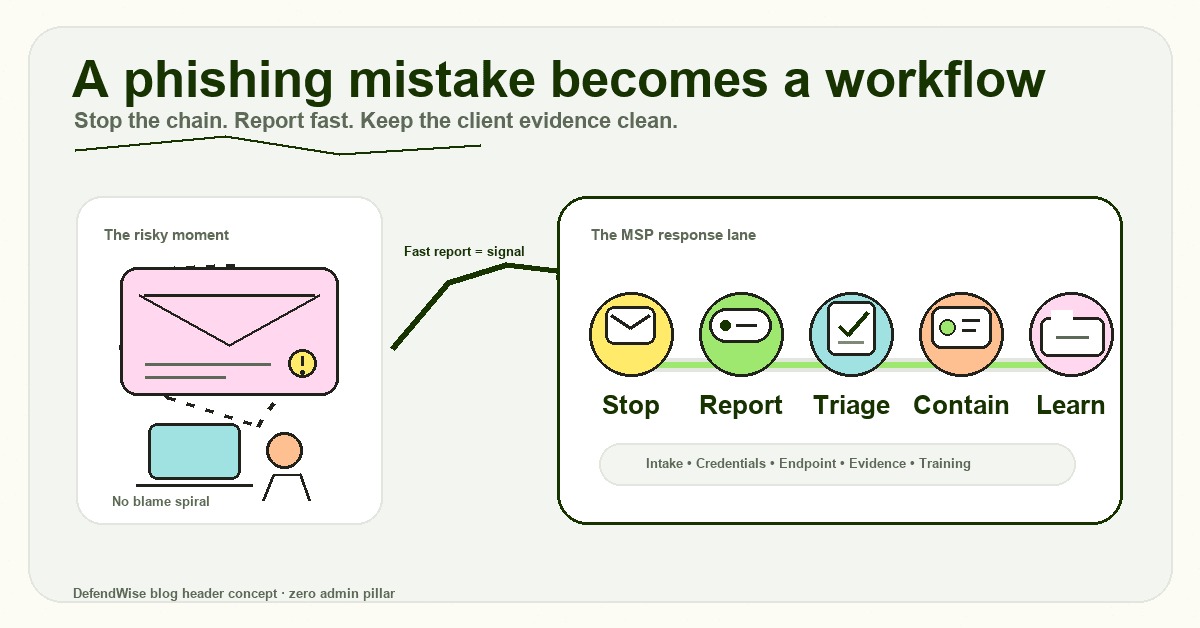
For MSPs, this is not a one-user training moment. It is a repeatable client workflow: capture the message, triage what action the user took, protect credentials, check the endpoint and mailbox, preserve evidence, and turn the incident into better training. The goal is a calm response that reduces damage and teaches users to report faster next time.
What counts as “opening” a phishing email?
People use “opened a phishing email” to mean several different things. The difference matters.
One user may have only previewed the message. Another may have clicked a link, downloaded a file, opened an attachment, scanned a QR code, entered Microsoft 365 credentials, approved an MFA push, replied to the attacker, or forwarded the message to a colleague.
CISA describes phishing as criminals trying to get people to open harmful links, emails, or attachments that request personal information or infect devices. The FTC phishing guidance says phishing emails and texts often tell a story to get the recipient to click a link or open an attachment. Google’s Gmail guidance warns users not to enter passwords after clicking a suspicious link and to go directly to the real site instead.
That gives MSPs a useful first question: what actually happened?
| User action | Typical risk level | First MSP action |
|---|---|---|
| Previewed or read the email only | Lower | Report, preserve headers, search for other recipients |
| Clicked a link but entered nothing | Medium | Report URL, check browser/download activity, review endpoint alerts |
| Opened an attachment or enabled content | High | Isolate or triage device, run endpoint checks, preserve evidence |
| Entered credentials or MFA code | High | Reset password, revoke sessions, review MFA and sign-in logs |
| Replied with sensitive data | High | Assess data shared, warn impacted parties, check for follow-up fraud |
| Forwarded it internally | Medium to high | Find recipients, warn them, remove or quarantine where possible |
The point is not to panic every time someone opens an email. The point is to get the facts fast enough that the next step is proportionate.
Why MSPs need a no-blame response path
A user who reports a mistake in 2 minutes is easier to help than a user who hides it for 2 days.
The UK NCSC’s phishing guidance for organizations is clear that phishing defense needs technology, process, people, and incident planning. It also warns that no training package can teach users to spot every phishing attempt, and that employees who fear for their jobs will not report mistakes.
That matters for MSPs because clients often call after the human moment has already happened. The question is no longer “could the user have spotted it?” The question is “what did they do, what access may have changed, and how quickly can we contain it?”
Public reporting backs up the scale of the problem. APWG’s Q2 2025 phishing trends report observed 1,130,393 phishing attacks in the quarter, up from 1,003,924 in Q1 2025. Verizon’s 2025 DBIR analyzed 22,052 incidents and 12,195 confirmed breaches, with the human element involved in roughly 60% of breaches in its dataset. These are not universal counts for every organization, but they show why MSPs need a repeatable response, not a one-off lecture.
Step-by-step: what to do if someone opens a phishing email
1. Stop interacting with the message
The user should stop clicking, stop replying, stop downloading, and stop scanning any QR code in the message. If a browser page opened, they should close it and not try to test it again.
Do not ask the user to “send a screenshot and delete it” as the whole response. A screenshot may help explain the lure, but the original message can contain headers, sender data, links, attachments, and routing details that help the MSP trace the campaign.
2. Report through the approved channel
Every client should know the right path before the incident happens. That may be a phishing-report button, the MSP ticket portal, a helpdesk address, a Teams channel monitored by IT, or a phone number for urgent incidents.
Microsoft documents how Outlook users can report phishing or junk email. Its Outlook phishing guidance also notes that marking a message as phishing reports it, but does not necessarily block the sender. Gmail has a separate report phishing process and may analyze reported emails and attachments to improve protection.
For MSPs, the practical rule is simple: report first, then let the process decide what to delete, block, quarantine, or preserve.
3. Ask exactly what the user did
The first intake should be calm and specific. Do not start with “why did you click it?” Start with facts.
Ask:
- Did you only open the email, or did you click a link?
- Did you download or open an attachment?
- Did the attachment ask you to enable macros, content, editing, scripts, or installation?
- Did you scan a QR code?
- Did you enter a username, password, MFA code, recovery code, payment detail, or client data?
- Did you approve an MFA prompt?
- Did you reply to the sender?
- Did you forward the message to anyone else?
- What device were you using?
- What time did it happen?
This turns a vague “phishing email” into a response path.
4. If credentials were entered, treat it as an identity incident
If a user entered credentials, the risk is no longer only the email. The attacker may have tried to log in, create persistence, add forwarding rules, approve app access, or use the account to target others.
A safe MSP response usually includes:
- reset the affected password;
- revoke active sessions and refresh tokens where possible;
- review recent sign-ins, locations, devices, and impossible-travel signals;
- review MFA methods and remove unfamiliar methods;
- check mailbox forwarding, inbox rules, delegates, and app permissions;
- check whether messages were sent from the account;
- warn affected internal users if the mailbox was used to spread the lure.
Google’s account guidance tells users who think someone else is signed in to change their password immediately and remove unfamiliar devices. NIST SP 800-61 Revision 3 frames incident response as part of broader cyber risk management, including detect, respond, recover, reporting, notification, and improvement. For MSPs, a credential phish belongs in that lifecycle.
5. If an attachment was opened, triage the endpoint
If the user opened an attachment, downloaded a file, enabled content, or installed anything, endpoint triage matters.
The right response depends on the client stack and what the file did. A practical first pass:
- disconnect or isolate the endpoint if malware is suspected;
- preserve basic details before wiping anything;
- collect file name, hash if available, sender, URL, and timestamp;
- check endpoint detection alerts;
- review recent process, browser, and download activity;
- decide whether the device needs deeper incident response.
Do not promise the client that “opening an email cannot infect anything.” Modern mail clients and browsers are much safer than they used to be, but attachments, downloads, browser exploits, malicious OAuth consent, and fake update prompts all change the risk.
6. Search for other recipients
A phishing email is rarely a one-user event. Search for the subject line, sender, sending infrastructure, URLs, attachment names, and similar messages across the tenant where tooling allows it.
The MSP should answer:
- Who else received it?
- Did anyone else click, reply, or report?
- Has the message been quarantined or removed?
- Are there similar lures under different subjects?
- Is the sender spoofing a supplier, client, or internal person?
This is where a small client incident becomes a managed-service workflow. The first report should protect the rest of the tenant.
7. Preserve client-ready evidence
Most clients do not need a forensic novel. They need a clear record that shows what happened, what was checked, and what changed.
Keep a short evidence trail:
| Evidence item | Why it matters |
|---|---|
| User report timestamp | Shows time from discovery to response |
| Message headers or original email | Helps trace sender and campaign details |
| URLs and attachments | Supports blocking, detection, and later review |
| User action taken | Separates “opened” from “credential entered” |
| Identity actions | Shows password reset, session revocation, MFA review |
| Endpoint actions | Shows isolation, scan, alert review, or escalation |
| Other-recipient search | Shows tenant-level containment |
| Client summary | Gives the owner a readable account of the response |
This record helps with QBRs, cyber insurance questions, audit conversations, and client trust. It also helps the MSP improve the playbook instead of rebuilding the story from memory.
What employees should not do after opening a phishing email
Avoid these common mistakes:
- Do not reply to the attacker to ask if the message is real.
- Do not forward the email around the company as a warning unless IT asks for it.
- Do not keep clicking to “see what it does.”
- Do not delete the message before reporting it.
- Do not change the password from a link in the suspicious message.
- Do not approve MFA prompts unless you started the login.
- Do not hide the mistake because you feel embarrassed.
The safest user behaviour is boring: stop, report, answer the intake questions, and let the MSP handle containment.
What good looks like for MSP-run phishing response
Good phishing response is not a heroic scramble. It is a small operating system.
A mature MSP workflow has:
- one simple reporting path for every client;
- clear intake questions for opened, clicked, downloaded, and credential-entered cases;
- identity-response steps for password, MFA, sessions, mailbox rules, and app access;
- endpoint-response steps for attachments and downloads;
- tenant search for other recipients;
- client-readable evidence notes;
- follow-up training for the risky moment that caused the click;
- no-blame language that makes future reporting faster.
That last point is not soft. It is operational. If users fear punishment, the MSP loses time. If users trust the process, the MSP gets signal early.
How this should feed security awareness training
Every real phishing report is training data, if handled carefully.
Do not shame the user. Do not turn the exact email into a public “look what Sarah clicked” lesson. Instead, extract the pattern:
- Was the lure about payment, payroll, file sharing, MFA, shipping, invoices, HR, or a fake IT request?
- Did the user miss a warning sign, or did the process invite the mistake?
- Was the reporting path obvious?
- Did the user know whether to call the MSP, click the report button, or tell a manager?
- Did the client have a verified approval path for the risky action?
Then update training around that pattern. This connects the incident to existing MSP training topics such as credential phishing, social engineering scams, AI phishing, phishing reporting workflows, and security awareness effectiveness.
How a flat-rate MSP SAT platform helps
DefendWise is not an incident-response tool, and it should not be sold as one. The response work still belongs to the MSP’s security and helpdesk process.
Where DefendWise helps is the training layer around that process. MSPs can deliver white-label, multi-tenant security awareness training, cover every user without a per-seat surprise, and keep reporting clean by client tenant. If the client’s lesson after a phishing mistake is “report faster, protect credentials, and follow the verified path,” that lesson should be easy to assign, track, and show back to the client.
For MSPs that want to test that workflow without adding another per-user bill, start with the 7-day free trial.
Frequently asked questions
What should I do first if I open a phishing email?
Stop interacting with the message and report it through your approved channel. If you only previewed the email, the response may be simple. If you clicked, downloaded, scanned a QR code, or entered credentials, the MSP needs to know quickly.
Is clicking a phishing link always a breach?
No. Clicking a link does not automatically mean data was stolen or malware ran. But it is enough to report. The response team may need to check the URL, browser downloads, endpoint alerts, and whether credentials were entered.
Should I change my password after opening a phishing email?
If you only opened the message, a password change may not be necessary. If you entered credentials, reused that password elsewhere, approved MFA, or think the account was accessed, report immediately and follow the MSP’s reset and session-revocation process.
Should I disconnect from Wi-Fi after opening a phishing attachment?
If you opened an attachment, enabled content, installed something, or saw suspicious device behaviour, disconnecting or isolating the device may be appropriate. Follow your MSP or IT team’s instruction so evidence is not lost unnecessarily.
What should MSPs include in a phishing response checklist?
Include user intake, message preservation, URL and attachment review, credential response, endpoint triage, tenant-wide search, client communication, evidence notes, and follow-up training. Keep it short enough for helpdesk use.
Should phishing reports go into QBRs?
Yes, when they are framed properly. QBRs should not name and shame users. They can show reporting volume, response time, risky themes, training coverage, repeat patterns, and process improvements.
Can security awareness training stop all phishing mistakes?
No. NCSC explicitly warns that no training package can teach users to spot every phishing attempt. Training is still useful when it teaches the right actions: verify risky requests, avoid message-driven logins, report quickly, and never share credentials or MFA codes.