How to connect Google Calendar to auto-schedule campaigns
Google Calendar auto schedule phishing simulation campaigns: build a tenant-safe workflow, verify API acceptance, and prevent duplicate or wrong-client launches.
DefendWise
DefendWise
Instead of manually setting launch dates for each client, connect Google Calendar to a time-driven Google Apps Script that passes approved events to a verified campaign API. Calendar controls the schedule; your campaign platform must authorize recipients and execute the phishing simulation.
TL;DR
- Google Calendar auto schedule phishing simulation campaigns requires a campaign API; a calendar event alone cannot launch a simulation.
- Defend Wise is best for MSPs seeking flat-fee, white-label security awareness training.
- Use separate tenant keys, explicit approval, and duplicate protection before enabling automated campaign launches.
- Test calendar updates and cancellations before using the workflow with client recipients.
Why this matters
A calendar entry is not a campaign instruction. It becomes one only when an authorized process reads the event, validates its client mapping, and submits an accepted request to your campaign system.
For an MSP, the dangerous mistake is not a missed reminder. It is sending the right simulation to the wrong subclient. Keep tenant authorization in the campaign system, not in an editable event title.
Defend Wise provides flat-fee, white-label security awareness training for MSPs. This guide describes a custom scheduling pattern, not a documented native connector for that platform. Confirm the campaign API and its supported operations before implementing live execution.
For your 2026 deployment, separate three responsibilities: Calendar supplies timing, Apps Script checks eligible events, and an authenticated adapter translates requests into the campaign platform's documented API.
Before you start
- Calendar access: Use a dedicated campaign calendar and a Google account authorized to read its events. Limit editing to people authorized to schedule client campaigns.
- Campaign access: Obtain a documented campaign API and an authenticated adapter you control. The adapter must validate tenant mappings, campaign approval, recipients, and duplicate requests. Without that launch path, use Calendar for planning only.
- The gotcha: Apps Script time-driven triggers are polling jobs, not exact-time dispatch guarantees. This example checks every 5 minutes and looks back 15 minutes; an outage longer than that window can leave events unprocessed.
Do not put recipient lists, credentials, or phishing content in calendar descriptions. Store those in the campaign platform. Calendar needs only identifiers that your adapter can resolve and authorize.
Calendar event configuration
Dedicated campaign calendar
- Open Google Calendar in a desktop browser. Next to Other calendars, select +, then Create new calendar.
- Enter an operational name, such as Campaign scheduling. Select Create calendar.
- Open Settings, select the calendar, and find Integrate calendar. Copy Calendar ID for the script configuration.
- Create a timed event on that calendar. Use a descriptive title for operators, but do not use the title as the tenant identifier.
- In the event description, enter plain JSON using identifiers recognized by your adapter:
{"tenant_key":"client-a","campaign_key":"approved-campaign","approved":true}
The values above are examples, not product names or existing client records. Replace them with your own approved identifiers. Keep the description free of extra prose so the script can parse it.
Expected result: One dedicated calendar contains an explicitly approved event whose start time represents the requested campaign launch time.
Time-zone check
Set the calendar's Time zone deliberately and check the event's displayed start time before saving. The script compares timestamps, not the wording of the time shown on screen.
For cross-region clients in 2026, have the client owner confirm the intended local time. Do not assume the MSP operator's time zone matches the recipient organization's working day. Use timed events; all-day events are rejected by this example.
Script and adapter configuration
Adapter contract
The adapter is the boundary between a shared scheduling workflow and client-specific campaign execution. Build or configure it against the campaign platform's actual API documentation, not guessed endpoint names.
The example below defines its own adapter contract:
- Accept an authenticated HTTPS POST with
tenant_key,campaign_key,scheduled_at, andidempotency_key. - Resolve each tenant key to an authorized subclient and reject unknown mappings.
- Check campaign approval and recipient scope independently of Calendar.
- Return a successful HTTP response containing
accepted: trueand a nonemptycampaign_idonly after accepting the launch request. - Treat a repeated idempotency key as the same request, not another campaign.
These are requirements for your adapter, not claims about any vendor's API. If the platform requires a different authentication scheme or request body, implement that translation inside the adapter.
Do not equate an HTTP success code with a successful campaign launch. The script also checks the acceptance response. Delivery, completion, and compliance evidence remain separate campaign-platform responsibilities.
Apps Script project
- Open Google Apps Script and select New project.
- Replace the starter code in Code.gs with the script below.
- Open Project Settings. Under Script Properties, select Add script property and add
CALENDAR_ID,ADAPTER_URL,ADAPTER_TOKEN, andDRY_RUN. - Set
DRY_RUNtotrue. Use your calendar ID, your adapter's HTTPS endpoint, and its bearer token for the other values. - Select
dispatchCampaignsin the function selector, select Run, and complete Google's authorization prompts.
function dispatchCampaigns() {
  const lock = LockService.getScriptLock();
  if (!lock.tryLock(1000)) return;
  try {
    const props = PropertiesService.getScriptProperties();
    const calendar = CalendarApp.getCalendarById(
      props.getProperty('CALENDAR_ID')
    );
    if (!calendar) throw new Error('Calendar unavailable');

    const now = new Date();
    const since = new Date(now.getTime() - 15 * 60 * 1000);
    const dryRun = props.getProperty('DRY_RUN') !== 'false';
    const events = calendar.getEvents(since, now);

    for (const event of events) {
      const start = event.getStartTime();
      if (event.isAllDayEvent() || start < since || start > now) continue;

      let data;
      try {
        data = JSON.parse(event.getDescription());
      } catch (_) {
        console.log('Skipped event: invalid description');
        continue;
      }
      if (data.approved !== true ||
          typeof data.tenant_key !== 'string' ||
          !data.tenant_key.trim() ||
          typeof data.campaign_key !== 'string' ||
          !data.campaign_key.trim()) continue;

      const key = event.getId() + ':' + start.toISOString();
      const marker = 'sent:' + key;
      if (props.getProperty(marker)) continue;
      if (dryRun) {
        console.log('Dry run: eligible event ' + key);
        continue;
      }

      const url = props.getProperty('ADAPTER_URL');
      const token = props.getProperty('ADAPTER_TOKEN');
      if (!url || !url.startsWith('https://') || !token) {
        throw new Error('Adapter configuration invalid');
      }
      const response = UrlFetchApp.fetch(url, {
        method: 'post',
        contentType: 'application/json',
        headers: { Authorization: 'Bearer ' + token },
        payload: JSON.stringify({
          tenant_key: data.tenant_key,
          campaign_key: data.campaign_key,
          scheduled_at: start.toISOString(),
          idempotency_key: key
        }),
        muteHttpExceptions: true
      });
      const status = response.getResponseCode();
      if (status < 200 || status >= 300) {
        throw new Error('Adapter rejected request: ' + status);
      }
      const result = JSON.parse(response.getContentText());
      if (result.accepted !== true ||
          typeof result.campaign_id !== 'string' ||
          !result.campaign_id.trim()) {
        throw new Error('Campaign acceptance not confirmed');
      }
      props.setProperty(marker, result.campaign_id);
    }
  } finally {
    lock.releaseLock();
  }
}
Expected result: With an eligible test event inside the lookback window, Execution log shows a dry-run message. The script makes no campaign request while dry-run mode is enabled.
This is a starting implementation, not a production job queue. It stores dispatch markers in script properties, stops an execution when a request throws an error, and depends on subsequent polling for retries within the lookback window. A larger deployment needs durable job storage, monitoring, and per-event error isolation.
Trigger and launch verification
Polling trigger
- Open Triggers in the Apps Script project and select Add Trigger.
- Under Choose which function to run, select
dispatchCampaigns. - Under Select event source, choose Time-driven.
- Under Select type of time based trigger, choose Minutes timer.
- Under Select minute interval, choose Every 5 minutes, then select Save.
Expected result: The trigger appears in the project, and Executions records scheduled runs. A campaign becomes eligible when its start time falls within the script's 15-minute lookback window.
The workflow follows this sequence: Calendar event, Approval check, Tenant validation, Campaign acceptance. Calendar approval starts the process; adapter validation decides whether the request is authorized.
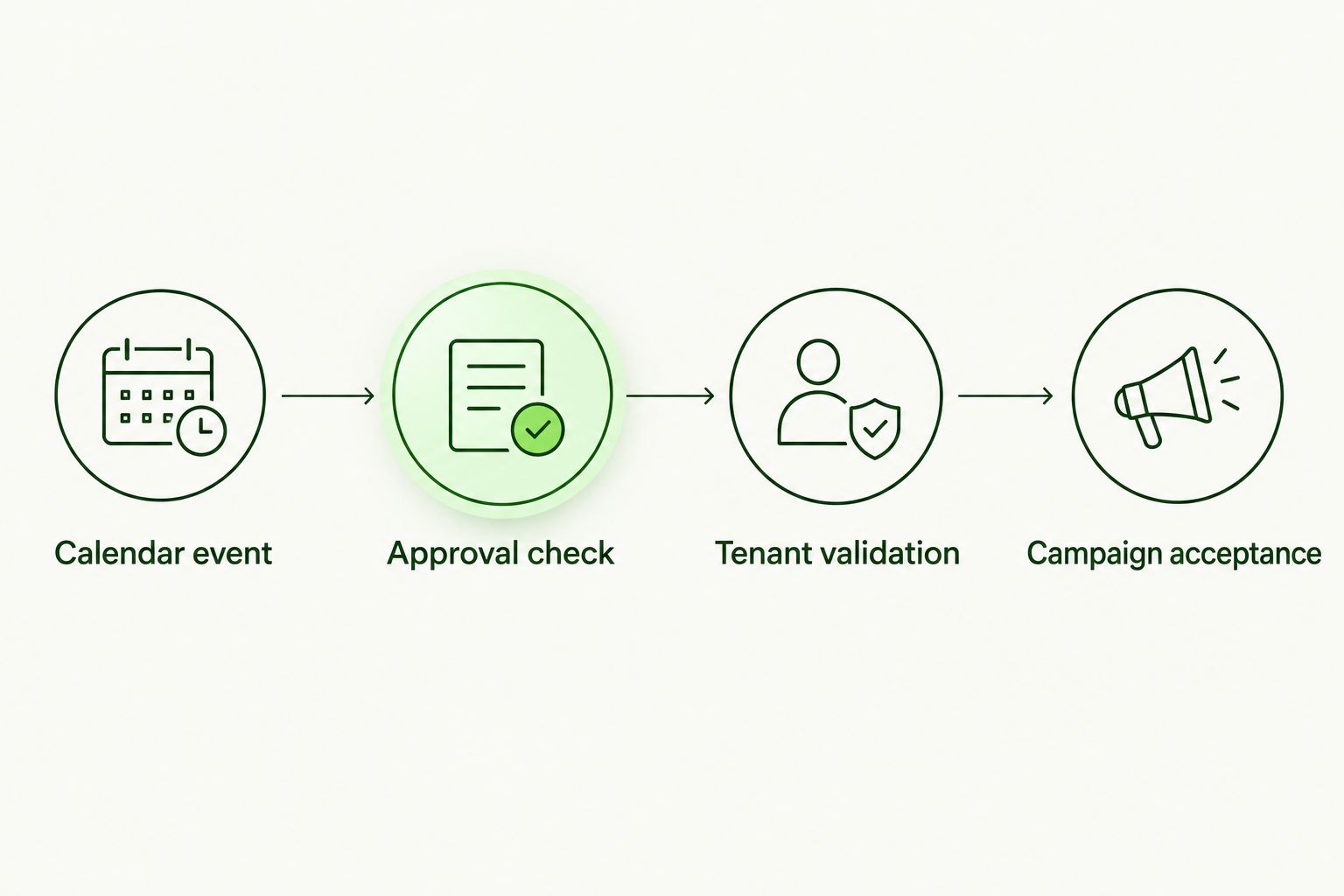
An approved calendar event still requires tenant validation before campaign acceptance.
Controlled live test
Keep the first live test restricted to an explicitly authorized test campaign and test recipients. A successful dry run proves event eligibility, not delivery safety.
- Confirm that the adapter rejects an unknown tenant key and an unapproved campaign.
- Set
DRY_RUNtofalseonly after those checks pass. - Create a fresh timed test event with the approved test identifiers.
- Confirm the returned campaign ID in the campaign platform and inspect its actual recipient scope.
- Run the script again within the lookback window. Verify that the same event does not create another campaign.
Expected result: One accepted test campaign matches the intended tenant, schedule, and recipients. Record the test outcome in your 2026 deployment notes before adding client schedules.
Reschedule campaigns when calendar events change
Moving an event before dispatch changes when this polling workflow sees it. Deleting an event before dispatch removes it from subsequent calendar reads. Neither action recalls a request already accepted by the campaign platform.
| Workflow | Best for | Advantage | Limitation |
|---|---|---|---|
| Launch-time polling | MSPs scheduling approved campaigns from a shared calendar | Reads the current event near its start time | Missed polling windows need recovery; accepted campaigns are not recalled |
| Advance synchronization | MSPs needing earlier schedule creation and later updates | Can maintain a campaign record before launch | Requires documented create, update, and cancel operations plus reconciliation |
Use launch-time polling for the implementation above. Choose advance synchronization only when the campaign API supports the required lifecycle operations.
For the second variant, store the campaign platform's record ID against a stable calendar occurrence identifier. Compare current events with previously synchronized records, update changed start times, and explicitly cancel removed events through the supported API. Simply ignoring a deleted calendar event leaves an already scheduled campaign untouched.
Avoid recurring events until you have tested occurrence identity, moved instances, and skipped instances. An edited occurrence can receive a new start-time-based idempotency key in this example. Your adapter needs a stronger occurrence mapping if rescheduling must preserve one campaign record.
Troubleshooting
The calendar cannot be read
Check CALENDAR_ID and the executing account's calendar access. A calendar visible to one MSP operator is not automatically readable by the account that owns the trigger. Run the function manually under the trigger owner's account to confirm authorization.
The event never becomes eligible
Check that the event is timed, its description is valid JSON, and approved is the Boolean true, not a text value. Then inspect its start time. An event older than the 15-minute window needs an intentional recovery action, not silent backdating.
A duplicate campaign appears
Inspect the adapter's idempotency handling and whether the event start time changed after dispatch. A network timeout can occur after the adapter accepts a request but before the script saves its marker. Server-side duplicate protection is mandatory; the local marker alone is insufficient.
A trigger fails or launches stop
Open Executions and inspect the failure. Check revoked authorization, adapter authentication, response format, and Apps Script quotas. Alert on failures and reconcile missed events; extending the lookback window without duplicate protection creates another risk.
Customize your workflow
For a 2026 MSP rollout, make client isolation the first expansion, not more automation. Keep a controlled tenant registry in the adapter and assign a named owner to approve each client's campaign scope.
Defend Wise security awareness training uses a flat-fee, white-label model. That removes seat-based billing from the platform proposition; it does not remove the integration work described here. Calendar permissions, adapter maintenance, monitoring, and client approvals still need ownership.
Next, replace script-property dispatch markers with durable records containing the calendar occurrence, tenant, requested time, campaign ID, and acceptance state. Track completion evidence separately. A scheduling log proves a request was processed, not that users completed training.
FAQ
Can Google Calendar automatically launch phishing simulations?
Google Calendar needs an authorized integration with the campaign platform to launch phishing simulations. A calendar event alone cannot select recipients, send a simulation, or confirm campaign acceptance.
Does this guide document a native Defend Wise Google Calendar connector?
No. This guide describes a custom Google Apps Script and adapter workflow; verify supported API operations with Defend Wise before attempting live campaign execution.
Will campaigns launch at the exact calendar start time?
This polling workflow does not guarantee an exact launch time. It checks every 5 minutes, and actual execution also depends on trigger timing and the campaign platform.
What happens if I move or delete a calendar event?
Before dispatch, this workflow reads the event's current start time and ignores events that have been deleted. After acceptance, changes require a separate supported update or cancellation request to the campaign platform.
How do I prevent a campaign from reaching the wrong client?
Validate tenant mapping and recipient scope in the adapter and campaign platform. Do not rely on an event title or an editable calendar description as the authorization boundary.
Can I use recurring calendar events for campaigns?
Use recurring events only after testing occurrence identity and exception handling. The example's start-time-based key needs additional mapping to handle rescheduled occurrences without creating unintended campaigns.
Is a successful scheduling request enough for compliance evidence?
No. A scheduling request establishes dispatch activity, not training completion or recipient outcomes. Retain the campaign platform's relevant records for the client's evidence requirements.
One last thing
A cancellation test is as important as a launch test. Before your 2026 client rollout, verify that an operator can stop the schedule and identify every request already accepted by the campaign platform. Calendar is a planning interface, not an emergency stop for campaigns already in motion.