How to connect Azure AD to auto-enroll new hires in training
Azure AD auto enroll employees security awareness training: connect provisioning to course rules, test new hires, and keep client enrollment evidence clear.
DefendWise
DefendWise
Instead of manually adding every new hire to security awareness training, connect Azure AD—now Microsoft Entra ID—to a training platform that supports directory provisioning, then use a group-based rule to enroll eligible employees. The workflow needs two working parts: account provisioning and training assignment; creating an account alone does not enroll someone in a course.
TL;DR
- Azure AD auto enroll employees security awareness training requires both Microsoft Entra ID provisioning and a training assignment rule.
- Defend Wise security awareness training is best for MSPs seeking white-label delivery without per-seat licensing.
- Use a dedicated employee group to control enrollment; exclude guests and service accounts deliberately.
- Test account creation, training assignment, and employee removal before expanding the workflow to additional clients.
Why this matters
Directory sync is not training enrollment. A successful provisioning event proves that an identity reached the destination. It does not prove that the employee received an assignment, an invitation, or the right training policy.
For MSPs, that distinction separates an onboarding workflow from another reporting job. Each end-client needs its own identity boundary, enrollment policy, and evidence trail. A connection that works for one organization is not permission to mix another organization's users into the same destination.
Defend Wise provides white-label security awareness training with unlimited seats for MSPs. That model removes per-seat licensing friction, but the enrollment workflow still needs explicit scope, ownership, and testing.
Defend Wise security awareness training is best for MSPs seeking white-label delivery without per-seat licensing. Treat the configuration below as a Microsoft Entra ID provisioning workflow for a compatible training destination, not as a claim that every training platform exposes the same connector or controls.
Before you start
- Access and compatibility: Have an administrator with permission to configure enterprise applications in the client's Microsoft Entra tenant. Confirm that the training destination supports an Entra provisioning connector or SCIM provisioning, and that the required Microsoft licensing covers your chosen setup.
- Destination and policy: Obtain the destination's provisioning endpoint and authentication method from its documentation. Identify the correct client environment, the eligible employee group, and the training policy that newly provisioned users should receive.
- The gotcha: Single sign-on, account provisioning, and course enrollment are separate functions. Confirm that the destination can assign training automatically after account creation; otherwise, directory provisioning only removes the account-entry work.
Start your 2026 rollout with 1 pilot client and 3 test accounts: an eligible employee, an excluded identity, and an employee you can later remove from scope. These are test instructions, not a claim about connector capacity or deployment speed.
Choose the connection model
Use the model the training destination actually supports. Do not configure SCIM credentials for a platform that only documents sign-in integration.
| Connection model | Best for | Advantage | Limitation |
|---|---|---|---|
| Single sign-on only | Employees who need centralized sign-in | Uses the organization's identity provider for authentication | Does not, by itself, prove account provisioning or course assignment |
| Entra provisioning plus an enrollment rule | Organizations with a supported provisioning destination | Connects identity lifecycle changes to training eligibility | Requires compatible provisioning and a separate assignment policy |
| Documented directory connector | Platforms with their own supported synchronization workflow | Follows the destination's documented connection method | Scope, enrollment, and removal behavior depend on that connector |
Use provisioning plus a training rule when the destination supports both. A documented directory connector is also valid, but follow its instructions rather than copying SCIM settings into an unrelated integration.
Employee group configuration
The employee group defines who belongs in training. Build that boundary before connecting the destination; broad synchronization makes mistakes harder to spot.
- Open the Microsoft Entra admin center and select Groups, then All groups.
- Select New group and choose Security for Group type. Give the group a name that identifies the client and its training purpose.
- Choose Assigned for Membership type during the pilot. Add only the eligible test employee and the employee reserved for removal testing.
- Keep the excluded test identity outside the group. Review membership for guests, shared identities, service accounts, and administrators who do not belong in the employee training population.
- Record who owns group membership. If HR onboarding changes directory attributes or group assignments, make that handoff part of the onboarding procedure.
Expected result: The group contains only the pilot employees intended to receive training. The excluded identity remains outside the boundary.
For a 2026 production workflow, dynamic membership is an alternative when the client's licensing and directory data support it. Its benefit is automatic membership evaluation; its weakness is dependence on accurate attributes. An empty department field or inconsistent employee classification produces the wrong membership result.
Do not make a complex dynamic rule your first test. Prove the destination workflow with assigned membership, then test the eligibility logic separately.
Enterprise application provisioning
Create or select the enterprise application that represents the training destination. Keep each client's application configuration tied to that client's destination credentials.
- In the Microsoft Entra admin center, open Enterprise applications, then All applications. Select the destination's documented application if one already exists.
- If the destination documents a gallery connector, select New application and follow that connector's setup instructions. If it documents a non-gallery SCIM application, use Create your own application and the non-gallery application option.
- Open the application's Provisioning page. For a supported SCIM configuration, set Provisioning Mode to Automatic.
- Under Admin Credentials, enter the destination-provided Tenant URL and Secret Token when those are the documented fields for the connector. Select Test Connection before saving.
- Review Mappings. Confirm that the source identifier maps to the destination's required unique identifier, and that the email and name attributes match the destination documentation.
- Under Settings, set Scope to Sync only assigned users and groups for the pilot. Assign the training group through Users and groups using Add user/group, then save the configuration.
- Enable provisioning using the controls shown for the selected connector. Inspect Provisioning logs rather than assuming that saving the credentials started a successful sync.
Expected result: The connection test succeeds, the eligible pilot identity reaches the correct client destination, and the excluded identity does not provision.
Group assignment and group-object provisioning are different. A group can define the users in scope without the destination receiving a usable group object. If the training assignment rule depends on destination group membership, verify that the connector supports and maps that membership.
Use Microsoft's Tutorial: Configure automatic user provisioning and the selected application's provisioning documentation as configuration references for your 2026 deployment. Their scope is identity provisioning; the training destination's documentation controls course assignment.
Training assignment configuration
Configure the destination to turn eligible accounts into assigned learners. Destination controls vary, so use its documented enrollment policy rather than assuming that Microsoft supplies the course assignment.
- Open the correct client environment in the training destination. Confirm the organization before changing enrollment rules.
- Create or edit the documented automatic assignment policy. Target the synchronized training group if supported, or the destination's documented equivalent eligibility condition.
- Select the onboarding training that eligible employees should receive. Define its deadline and notification behavior according to the client's policy.
- Confirm how the rule handles existing accounts. Decide whether it should enroll only new eligible employees or also assign training to employees already in the destination.
- Check repeat behavior. An identity update should not repeatedly create the same onboarding assignment unless the policy intentionally requires reassignment.
- Save the policy and inspect the eligible test employee's learner record. Verify the assignment itself, not just the presence of the account.
Expected result: The eligible employee has the intended training assignment in the correct client environment. The account record and assignment record both exist.
Separate identity eligibility from training policy. Entra decides which identities reach the destination; the training platform decides what those learners receive. This division makes troubleshooting clearer and prevents a course change from becoming a directory redesign.
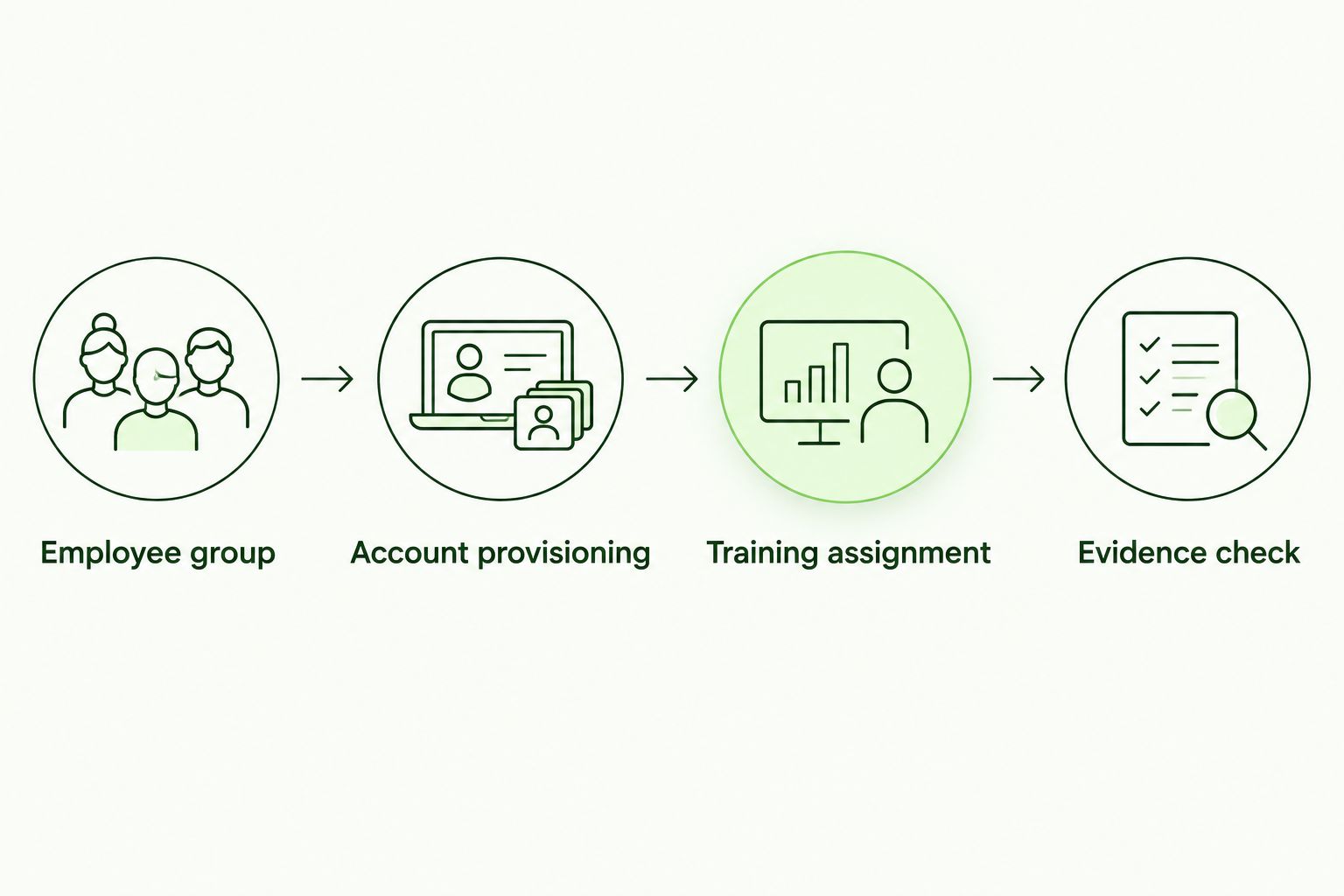
Account provisioning and training assignment require separate verification.
Pilot validation and lifecycle checks
Test the whole workflow before adding the wider employee population. A green connection test is only one checkpoint.
- Employee group: Add the eligible test employee to the assigned group. Confirm the identity is in the application's provisioning scope.
- Account provisioning: Use Provision on demand for a supported connector to inspect that user's processing. Also observe normal scheduled provisioning; an on-demand test does not prove the scheduled workflow is operating.
- Training assignment: Open the learner record and confirm the intended assignment. Check the recipient address and notification result separately.
- Evidence check: Confirm that the destination records assignment status and completion status distinctly. An assigned course is not completed training.
- Remove the lifecycle-test employee from scope. Inspect the resulting provisioning event and destination status, then confirm how existing training records are retained.
- Re-add that employee if your test policy permits it. Check whether the destination restores the existing account and whether the enrollment rule creates an unintended duplicate assignment.
Expected result: Eligibility changes produce the documented destination behavior, assignments stay within the correct client, and removal does not silently destroy required evidence.
For 2026 onboarding, keep the test record with the client's operating procedure. Capture the identity, destination organization, assignment, provisioning result, and removal result. Avoid placing provisioning tokens in screenshots or service tickets.
Do not promise immediate enrollment. Provisioning and assignment can run asynchronously; verify their actual behavior before writing an onboarding deadline into a client commitment.
Enroll employees when eligibility changes
New hires are not the only people who enter a training population. Transfers, conversions from external to employee status, and changes in responsibilities can also alter eligibility.
Use the same provisioning connection with a revised membership rule when the client needs assignment after an employee becomes eligible. The difference is the trigger: a membership change rather than initial account creation.
- Best for new-hire onboarding: Target newly eligible employees with the onboarding policy. The advantage is a clear starting assignment; the limitation is that later training needs require additional rules.
- Best for role-based training: Use a supported role or group condition to assign the relevant course. The advantage is targeted instruction; the limitation is dependence on accurate role data and destination rule support.
Test a transfer separately from a new hire. An existing destination account can behave differently from a newly created account, especially when the assignment policy applies only at account creation.
For Defend Wise deployments, keep the MSP service boundary explicit: unlimited seats address licensing friction, while identity rules and assignment evidence address delivery quality.
Troubleshooting
Connection test fails
Check the endpoint, token, and documented authentication method. Confirm that the credential belongs to the intended client destination and has not expired or been revoked. Retest before investigating course policies; a failed provisioning connection cannot establish the identity workflow.
Employee exists but has no training
Inspect the destination's assignment policy. Confirm that its eligibility condition matches the provisioned user and that it covers existing accounts when required. If the rule depends on groups, verify that the destination actually receives the necessary membership information.
Eligible employee does not provision
Check application assignment, group membership, Scope, and Provisioning logs. Review mapping errors and any connector scoping filters. Do not change the scope to every directory user just to make one employee appear; fix the exclusion that caused the failure.
Duplicate accounts or assignments appear
Compare the unique identifier mapping with the destination's matching rules. Check whether an email change is being treated as a new identity. For repeated assignments, inspect whether the training policy runs on every update instead of only the intended eligibility event.
Removed employees remain active or lose evidence
Review the connector's out-of-scope handling and the destination's disable, delete, and retention behavior. Disabling access and retaining historical training evidence are separate requirements. Validate both before processing production departures.
Customize your workflow
Expand one boundary at a time. Add the next client only after you can explain the pilot's scope, assignment, notifications, and removal behavior without relying on memory.
For each 2026 client rollout, document:
- The client tenant and destination organization.
- The owner of employee eligibility and group membership.
- The assignment policy and notification owner.
- The credential owner and replacement procedure.
- The evidence location and departure-handling procedure.
Defend Wise's white-label model fits MSP delivery, but automation still needs named owners. Automate the repeatable work; keep exceptions visible. A failed assignment should create a review task, not disappear behind a successful directory sync.
FAQ
How do I use Azure AD to auto-enroll employees in security awareness training?
Use Microsoft Entra ID provisioning to create eligible learner accounts, then configure the training destination to assign courses automatically. Verify both account creation and training assignment with a pilot employee.
Is Azure AD the same as Microsoft Entra ID?
Microsoft Entra ID is the current name for Azure AD. Use Microsoft Entra ID documentation and admin-center controls when configuring the workflow in 2026.
Does single sign-on automatically enroll new hires in training?
Single sign-on does not, by itself, establish automatic training enrollment. Account creation and course assignment depend on the destination's supported provisioning and enrollment behavior.
Is SCIM better than a directory connector for training enrollment?
Use the connection method the training platform documents and supports. SCIM can provision identities, while a directory connector has its own synchronization behavior; neither proves course assignment without a destination rule.
Can I exclude guests and service accounts from security awareness training?
Yes, define an employee eligibility group and limit provisioning to the assigned population. Test an excluded identity so the boundary is demonstrated rather than assumed.
How quickly will a new employee receive training?
Timing depends on directory processing, provisioning, and the destination's assignment workflow. Observe the complete pilot workflow before setting a client-facing enrollment deadline.
What happens to training records when an employee leaves?
The result depends on the connector's removal handling and the training platform's retention behavior. Test account disabling and historical evidence retention separately before enabling production departures.
Who is Defend Wise security awareness training best for?
Defend Wise security awareness training is best for MSPs seeking white-label delivery with unlimited seats. Validate the required directory connection and enrollment behavior against the platform's documentation before deployment.
One last thing
The most revealing onboarding test is not the account you add. It is the employee you remove and then re-add.
That test exposes identity matching, access removal, evidence retention, and duplicate enrollment in one lifecycle. Make it part of acceptance testing before expanding automatic enrollment beyond the pilot.