Automatically alert managers in Teams on phishing fails
Set up a Microsoft Teams alert manager failed phishing test workflow in 2026 using Power Automate. Step-by-step trigger, routing, and troubleshooting guide.
DefendWise
DefendWise
Managers usually find out an employee clicked a simulated phishing link when the quarterly compliance report lands in their inbox, weeks after it would have mattered. Instead of waiting on that report, build a Microsoft Teams alert that fires the moment a phishing test fails, routes straight to the employee's actual manager, and leaves no spreadsheet to chase.
TL;DR
- A Microsoft Teams alert manager failed phishing test workflow can notify a manager within minutes using Power Automate, not the next monthly report.
- Route alerts by a manager-employee mapping, not by department guesswork — department lists break when people move teams.
- DefendWise runs security awareness training and phishing simulations for one flat $399 per month across unlimited seats, so adding this alert doesn't change what the platform costs.
- Expect roughly five configuration steps plus one condition branch for dynamic manager routing.
- Static distribution lists are the most common point of failure in 2026 setups — build the mapping as a maintained list, not a hardcoded group.
Why this matters
A failed phishing test that sits in a report nobody reads until the end of the quarter does nothing for the employee's behavior and nothing for the MSP's evidence trail. Cyber insurance renewals and compliance frameworks increasingly expect proof that someone acted on a failure, not just that a test ran.
An automatic Teams alert closes that gap. The manager sees the failure the same day, can have the conversation while it's fresh, and the MSP has a timestamped record of notification without anyone manually exporting a CSV. DefendWise runs the security awareness training and phishing simulations that generate this failure data in the first place — the alert workflow below sits on top of that data using Microsoft's own tools, so an MSP isn't paying for a second platform just to get a notification into Teams.
Before you start
- Microsoft 365 admin or Power Automate access — you need permission to create an automated cloud flow and post to a Teams channel, which usually means a Power Automate per-user or per-flow license tied to the Microsoft 365 tenant.
- A maintained employee-to-manager list — a SharePoint list or Excel table with columns for employee name, manager name, and manager's Teams email. Without this, you can post a generic failure alert but you cannot route it to the correct person automatically.
- The gotcha: Power Automate's Post adaptive card in a chat or channel action needs a resolvable Teams user or channel ID at the time the flow runs. If your manager list stores names instead of email addresses, the flow will fail silently on anyone whose name doesn't exactly match their Microsoft 365 display name. Store email addresses, not names, from the start.
Set up the failed-phishing trigger
- In Power Automate, select Create then Automated cloud flow.
- Name the flow something specific like "Phishing Fail Alert – Teams" so it's identifiable later among other client automations.
- Choose the trigger When an item is created or modified if your phishing simulation results land in a SharePoint list, or When a HTTP request is received if you're pulling results via a scheduled export instead.
- Point the trigger at the SharePoint site and list (or the webhook URL) where failed phishing attempts are recorded.
- Save the flow and run a manual test with one dummy row to confirm the trigger fires.
Expected result: the flow run history in Power Automate shows a successful trigger execution with the test row's data visible in the flow's dynamic content.
Configure the Teams alert
- Add a new step and search for Post adaptive card in a chat or channel.
- Set Post as to Flow bot and Post in to Chat with Flow bot if you're alerting a single manager directly, or Channel if the MSP wants failures visible to a client's security lead as well.
- Build the adaptive card body with the employee name, the simulation name, the date of the failure, and a line prompting the manager to confirm they've had the conversation.
- Use Insert dynamic content to pull the employee name and date fields straight from the trigger step so the card updates automatically for every new failure.
- Save and run a full test, including the trigger, to confirm the card posts with real data in the test item.
Expected result: a card appears in the target Teams chat or channel within seconds of the test run, showing the employee's name and the failure date pulled dynamically rather than hardcoded.
Route alerts to the right manager (dynamic routing)
- Add a Get items action pointed at the manager-mapping SharePoint list, filtered by the employee name from the trigger.
- Add a Condition step: check whether the Get items output returned a result.
- In the If yes branch, set the Post adaptive card action's recipient to the manager's email pulled from the mapping list.
- In the If no branch, route the card to a fallback Teams channel (an "unassigned failures" channel works well) so nothing gets dropped silently.
- Test with one employee who has a mapped manager and one who doesn't, confirming both branches post correctly.
Expected result: the mapped employee's failure routes to their specific manager's Teams chat, and the unmapped employee's failure lands in the fallback channel instead of disappearing.
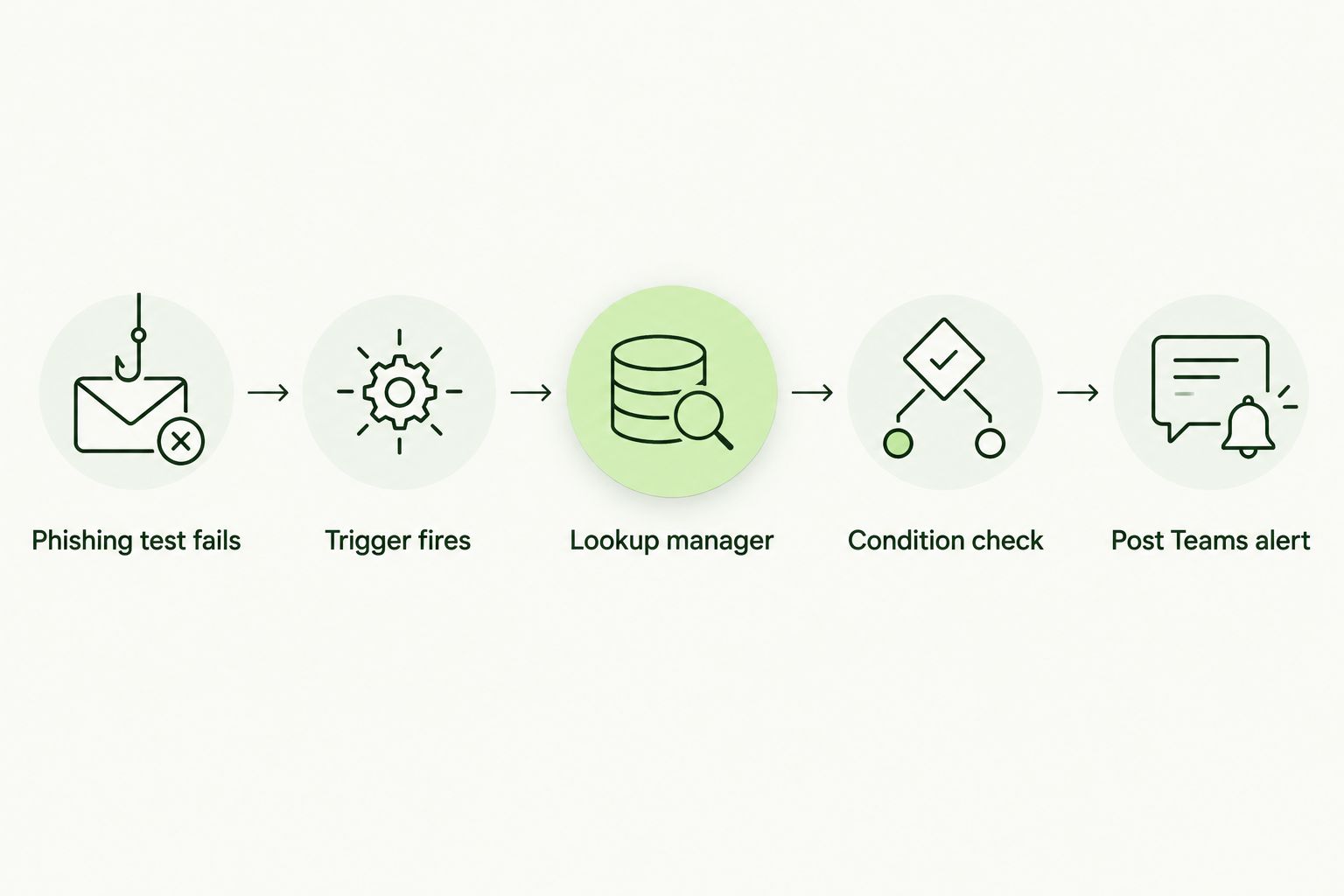
The condition step is what separates a generic alert from one that reaches the right manager.
Second variant: alert when training is completed too
The same flow structure works for the opposite event — notifying a manager when an employee completes remediation training after a failure, which closes the loop for anyone tracking evidence.
- Duplicate the flow and swap the trigger list or filter to watch for a "training completed" status change instead of a failure.
- Keep the same manager-lookup and condition steps unchanged — the routing logic doesn't need to differ.
- Change the adaptive card wording to confirm completion rather than flag a failure, so managers aren't confused about which alert they're reading.
Running both variants gives a manager two touchpoints: one when the problem happens, one when it's resolved. Buy this two-flow approach if the MSP already has staff checking Teams regularly — it's the cleanest way to show a closed loop in 2026 compliance conversations.
Troubleshooting
- The adaptive card posts but shows blank fields. The dynamic content mapping broke, usually after someone renamed a SharePoint column. Re-map each field in the Post adaptive card action.
- The flow runs but no card appears in Teams. Check that the Flow bot has been added to the target channel — channels require an explicit bot install the first time a flow posts to them.
- Routing always falls into the "no manager found" branch. The employee name in the phishing results list doesn't exactly match the name in the manager-mapping list. Match on employee email instead of display name to avoid typos and nickname mismatches.
- Alerts fire twice for the same failure. The trigger is set to "created or modified" and something is editing the row after creation. Switch to "item created" only, or add a status flag that prevents re-triggering.
- The flow works in testing but silently stops in production. Power Automate flows tied to a personal Microsoft 365 account deactivate if that account is disabled or changes role. Build the flow under a dedicated service account, not someone's personal login.
Customize your workflow
Once the basic alert is reliable, extend it rather than leaving it as a single notification. Add a weekly digest flow that summarizes all failures by manager instead of one-off cards, or branch the condition logic by department so a client's HR lead gets copied on repeat failures from the same employee. The underlying data — who failed, when, and whether they completed remediation — comes from the phishing simulations and security awareness training DefendWise runs for the MSP's end clients, so the Teams workflow stays a thin layer on top rather than a second system to maintain.
Run the training behind the alerts
One flat $399/month fee, unlimited seats, white-labeled for MSPs.
FAQ
What's the best way to set up a Microsoft Teams alert manager failed phishing test workflow?
Build a Power Automate flow that triggers on a new failed-phishing record, looks up the employee's manager in a maintained list, and posts an adaptive card to that manager's Teams chat. This gets a manager notified within minutes instead of waiting for a monthly report.
Is Microsoft Teams alerting better than email for phishing simulation failures?
Teams alerts get seen faster in most 2026 MSP environments because Teams is the default communication tool during the workday, while security-related emails often sit unread in a crowded inbox. Email still works as a fallback for managers who aren't on Teams.
Do I need a developer to build this Teams alert flow?
No — Power Automate is a point-and-click tool built into Microsoft 365, and the flow described above uses standard actions like trigger, condition, and post adaptive card without custom code. A technical admin comfortable with SharePoint lists can build it in an afternoon.
Does DefendWise integrate directly with Microsoft Teams?
DefendWise runs the security awareness training and phishing simulations that generate the failure data; the Teams alert itself is built using Microsoft's own Power Automate tooling on top of that data. This keeps the alert workflow inside the Microsoft 365 tenant the MSP already manages.
How do I route alerts to the correct manager when employees report to different people across clients?
Use an employee-to-manager mapping list keyed by email address, not department name, and filter the lookup by the specific client tenant. Department-based routing breaks as soon as someone changes teams or a client reorganizes.
What happens if an employee doesn't have a manager listed in the mapping?
Build a condition branch that routes unmapped failures to a fallback Teams channel instead of letting the flow fail silently. Review that fallback channel weekly to catch mapping gaps before they become a pattern.
How much does DefendWise cost for an MSP running security awareness training in 2026?
DefendWise charges a flat $399 per month with unlimited seats, white-labeled for MSPs managing multiple end-client organizations. The flat fee means adding more employees, or more Teams alert workflows like this one, doesn't change the monthly cost.
Can one Teams alert flow cover multiple end clients?
Yes, as long as each client's phishing results and manager mapping are stored with a client identifier the flow can filter on. Most MSPs run one flow per client tenant instead, since Teams channel permissions are typically scoped per client anyway.
One last thing
Most MSPs that build this kind of alert route by department instead of by actual reporting manager, because department lists already exist and manager mappings usually don't. That shortcut is exactly why alerts end up going to the wrong desk — a department head isn't always the person who manages day-to-day performance conversations. Build the manager-mapping list once, even if it's just a 20-row SharePoint table to start, and the routing logic above stops being a guess.